
Overview
Assistants in the sidebar shows every voice assistant across all your sub accounts. In the standard flow you build and edit assistants in your provider’s dashboard (Vapi or Retell), and Vapify assigns them to clients and manages their pricing.Vapify can also provision certain assistants directly — for example demo and e-commerce assistants. Your day-to-day assistants still live in the provider dashboard.
Common Tasks
View all assistants across your agency
Open Assistants in the sidebar for a global view: every assistant from every connected provider account, which sub account each is assigned to, status, and phone number.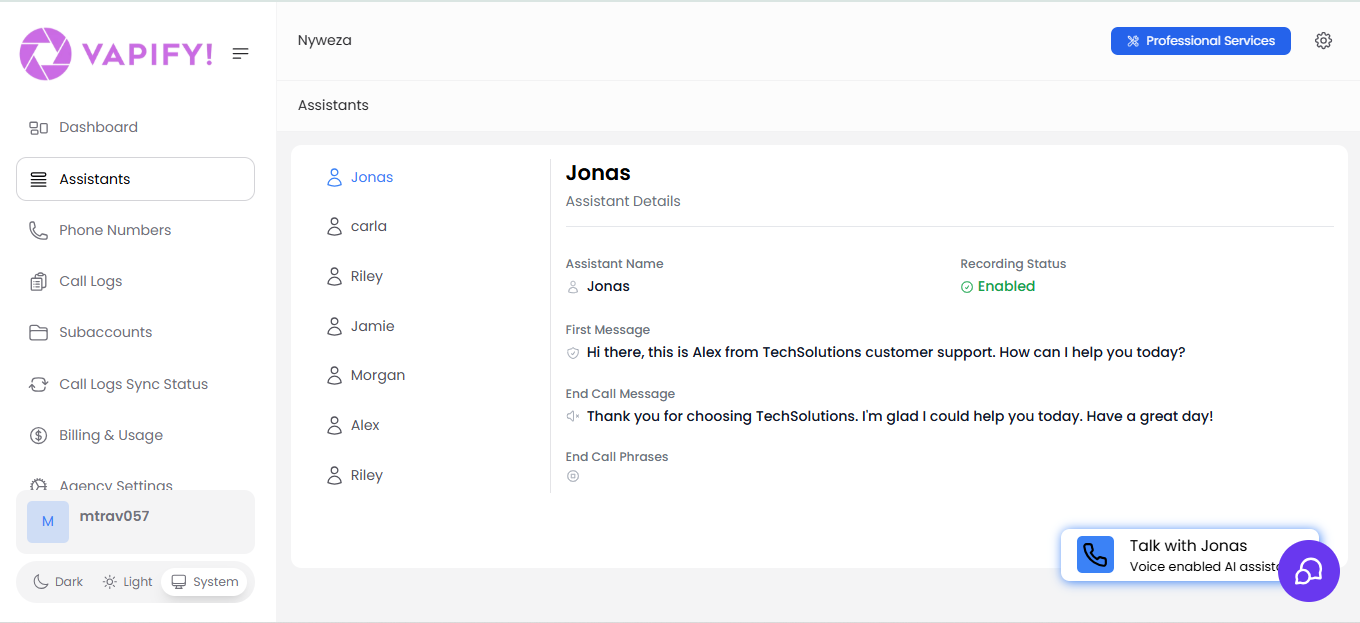
Sync assistants from your provider
Save a valid provider API key in a sub account’s General tab, or click Refresh Assistant List in its Assistants tab, whenever you create a new assistant, attach a phone number, or rename one in the provider dashboard.Assign an assistant to a client
See Assign an AI Assistant for the full steps.Set or change pricing
See Configure Pricing.Control voice-widget access
In a sub account’s Assistants tab, toggle Allow customers to talk to the voice assistants. Enabled lets clients test assistants through a dashboard voice widget; disabled limits them to analytics only.An assistant can only be assigned to one sub account at a time. For similar assistants across clients, create a separate assistant per client in your provider dashboard.
Troubleshooting
- Assistant missing from the assignment list: Confirm the provider API key is correct and saved, then click Refresh Assistant List.
- Cannot edit provider API key: The sub account has gone live; this lock is permanent. You can still add or remove assistant assignments after go-live.
Related Articles
- Understanding Sub Accounts: how assistants fit into a client’s sub account
- Pricing Models: per-minute, monthly, and hybrid pricing
- Vapi · Retell AI: provider-specific setup