
Overview
Contacts is each sub account’s own address book. It holds the people your client’s voice assistants talk to and book — captured automatically from calls and appointments, importable from GoHighLevel, and editable by hand. Each contact keeps a full call history, so you can see every call one person has made without searching the call log. Contacts are scoped to a single sub account and isolated between clients, the same way pricing and call data are (see Understanding Sub Accounts). When you manage more than one client, use the sub account selector to choose whose contacts you’re viewing.Contacts live in the sidebar, just below Calendar — the two work together: an appointment booked
through Calendar creates or updates the matching contact automatically.
How contacts get created
You rarely start from an empty list. A contact can arrive four ways:Contacts created from call logs sync
Every call that reaches Vapify is matched to a contact automatically — you don’t have to import anyone. As Call Logs sync from your voice provider, each call is checked against the sub account’s existing contacts:1
The caller is identified
Vapify takes the customer’s phone number and email from the call. If the call carries neither,
it’s stored as a call but no contact is created.
2
An existing contact is matched
The phone number is matched first, then the email, against contacts already in that sub
account. A match means the call is attached to the person you already have.
3
A new contact is created if nobody matches
If no contact matches, one is created with the caller’s phone, email, and name (when the
provider supplies it), and its source is set to voice call.
4
Blank details get filled in over time
When a matched contact is missing a field the call provides — an email, a last name — that
field is backfilled. Details you entered yourself are never overwritten.
Contacts appear as their calls sync, not the instant a call ends. If a caller you expect is missing,
check Call Logs Sync Status first — a stalled sync holds back both the calls and the contacts
they would create. See Call Logs.
The contacts list
Open Contacts in the sidebar to see every contact for the selected sub account.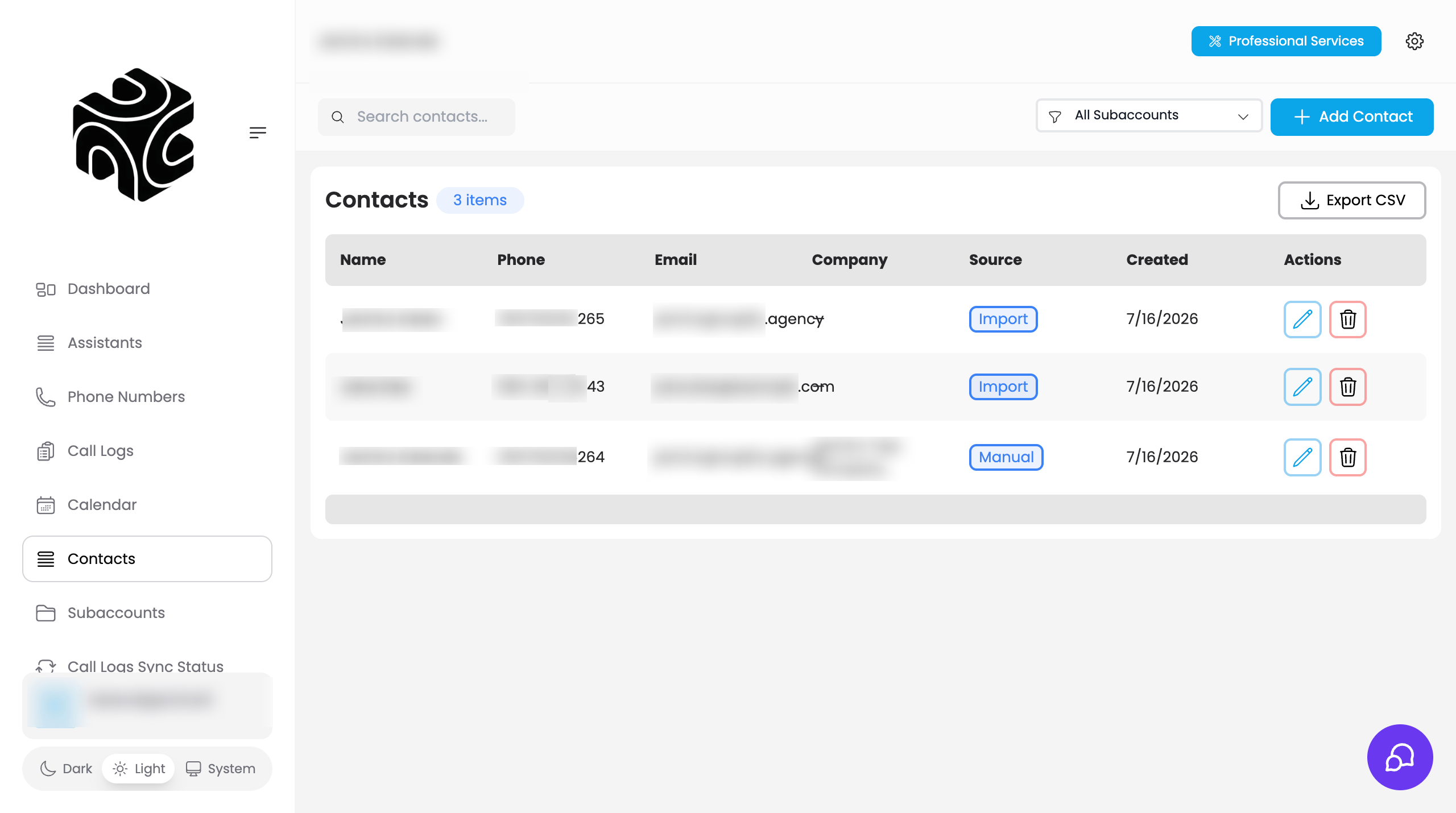
- Columns: Name, Phone, Email, Company, Source, Created, and row actions.
- Search: filter by name, email, or phone.
- Sub account filter: agency users can narrow the list to one client’s contacts.
- Add Contact: create a contact by hand (see below).
- Row actions: edit or delete any contact.
- Export CSV: download the current contacts as a spreadsheet (
contacts-export-<date>.csv), including every field — company, website, address, tags, custom fields, notes, and source.
Add a contact manually
Click Add Contact and fill in the details. A contact needs at least an email or a phone number; everything else is optional: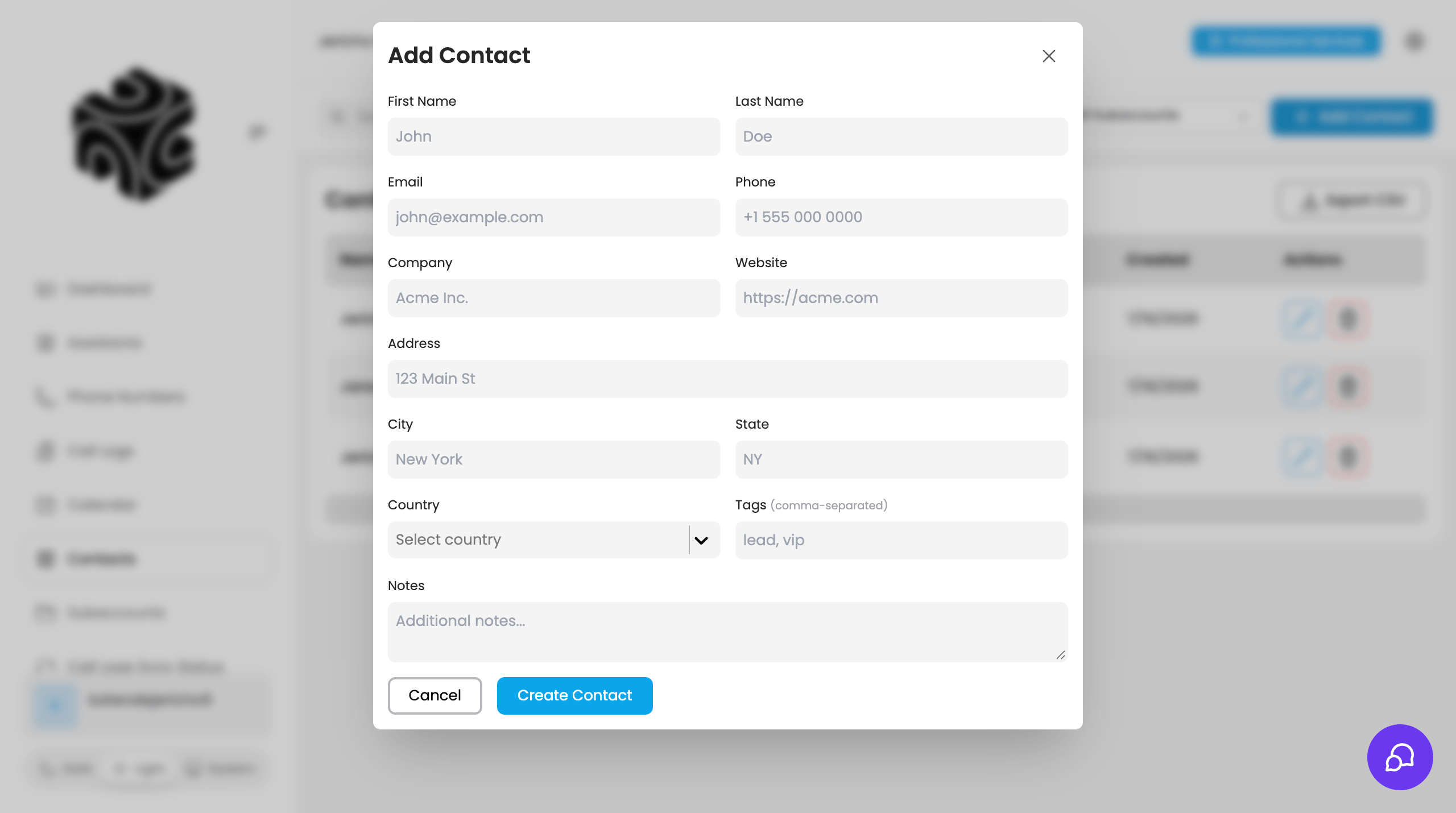
- Name (first, last), email, phone
- Company, website
- Address, city, state, country
- Notes and tags
- Custom fields
The contact detail page
Click a contact to open its detail page, which has three tabs: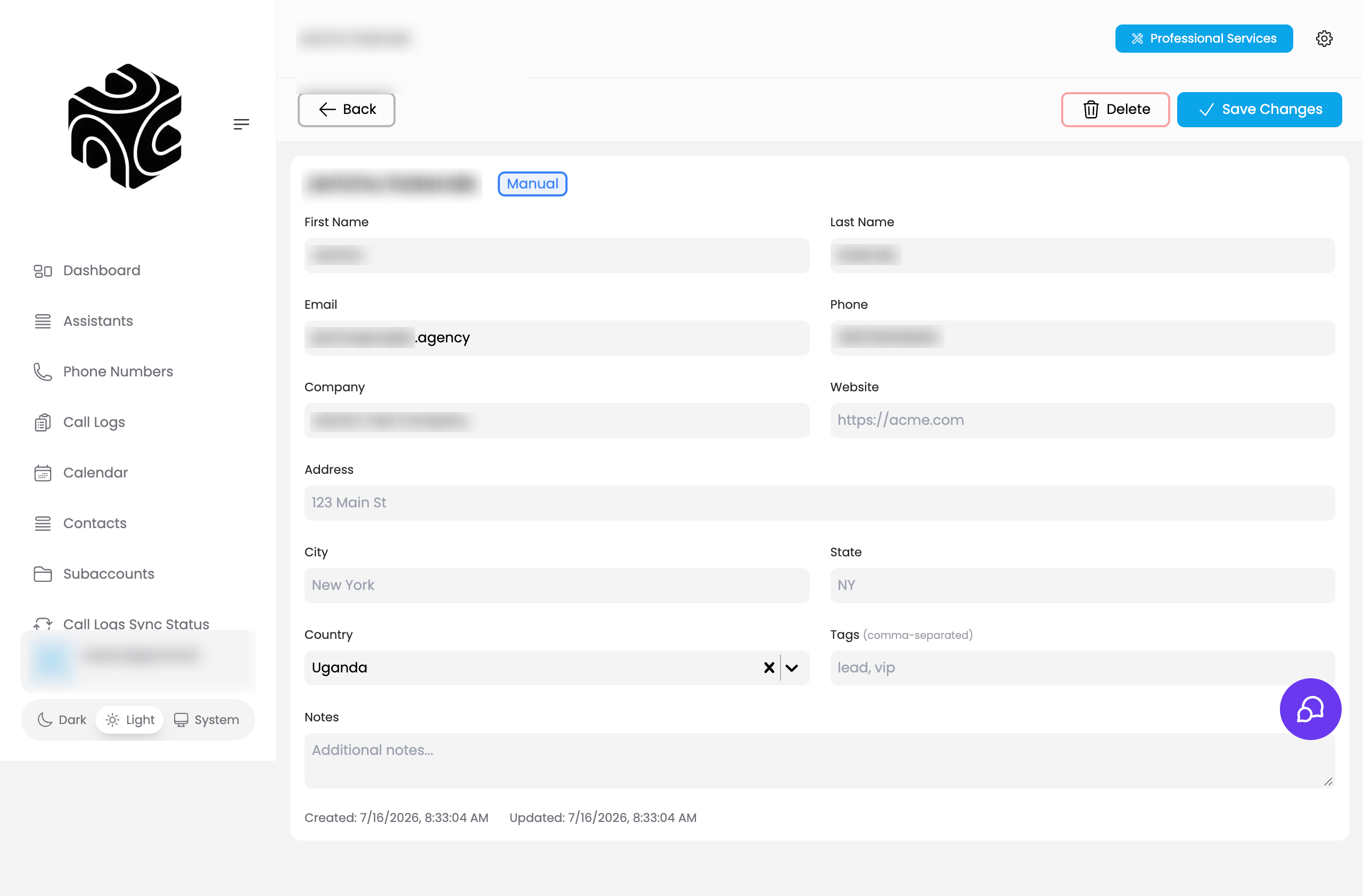
- Contact Details — the full record: contact info, company, address, tags, notes, and custom fields.
- Call History — every call this contact has made or received (see below).
- Appointments — every booking linked to this contact. Open one to see the appointment, or cancel it from here. This is the same booking data managed in Calendar.
Call History
The Call History tab shows every call linked to this contact, newest first, with a count of the total beside the heading. It answers “what has this person actually spoken to us about?” without digging through the full call log.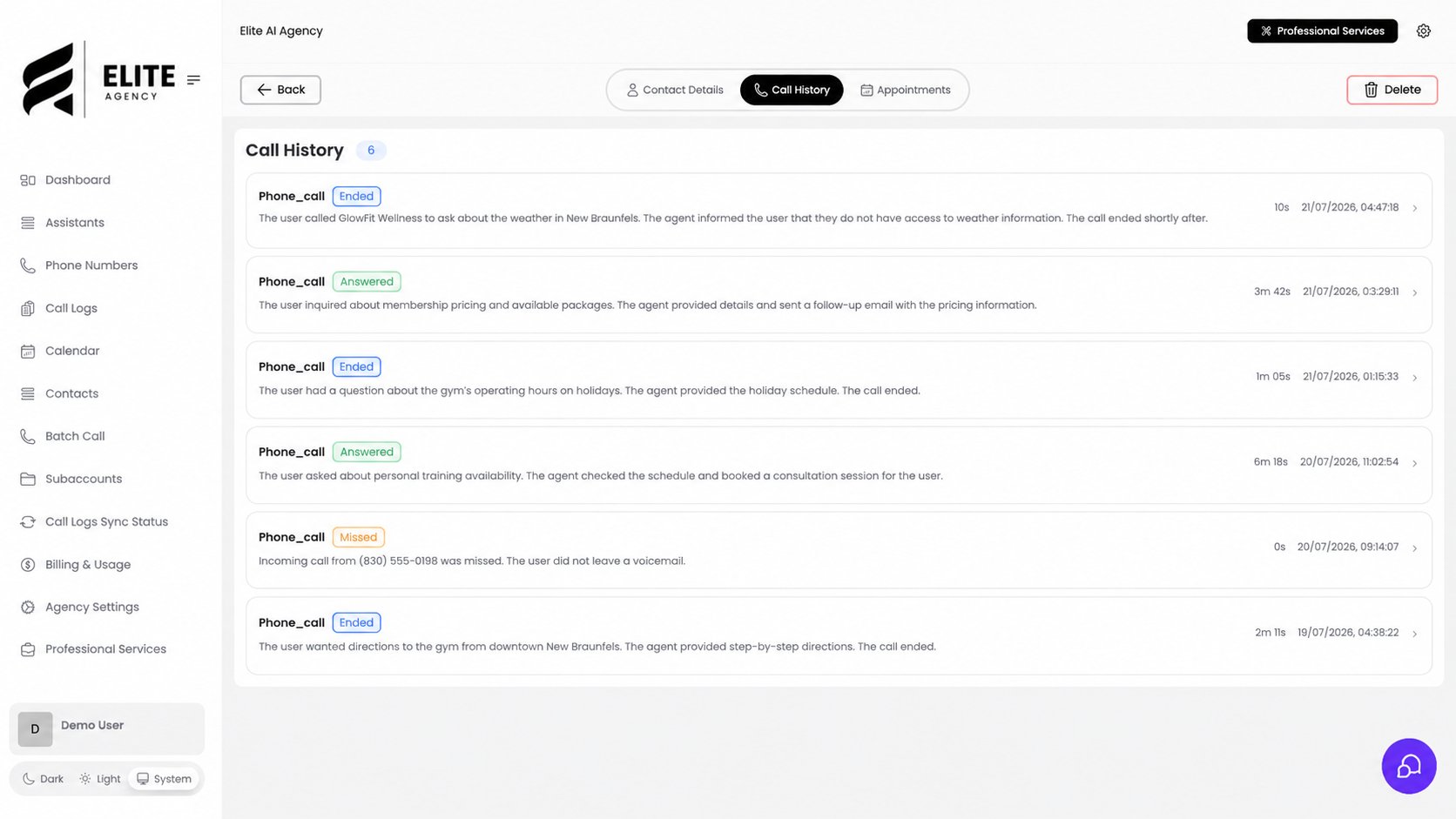
- Call type and status — such as
Answered,Ended, orMissed. - Summary — the assistant’s short account of what the caller wanted and what happened.
- Duration — how long the call lasted (
0sfor missed calls). - Date and time — when the call started.
Only calls that synced in and matched this contact appear here. Calls with no caller phone number or
email can’t be attributed to anyone, so they stay in Call Logs without showing on a contact.
Related Articles
- Call Logs: the full call record — syncing calls is what creates contacts and fills their call history.
- Calendar: where appointments are scheduled — bookings create and link contacts.
- GoHighLevel: map a GHL sub account to sync its contacts in.
- Understanding Sub Accounts: why contacts stay isolated per client.