
Overview
The GoHighLevel (GHL) integration wires your existing Vapify sub accounts and assistants into GHL, so calls, recordings, and workflows stay in sync, without exposing your prompts, provider configs, or pricing to clients.Prerequisites
- Sub accounts already set up in Vapify with assigned assistants and pricing
- A GoHighLevel account with marketplace access
Steps
- In GHL, open the marketplace, find Vapify Voice AI, click Install, and approve permissions.
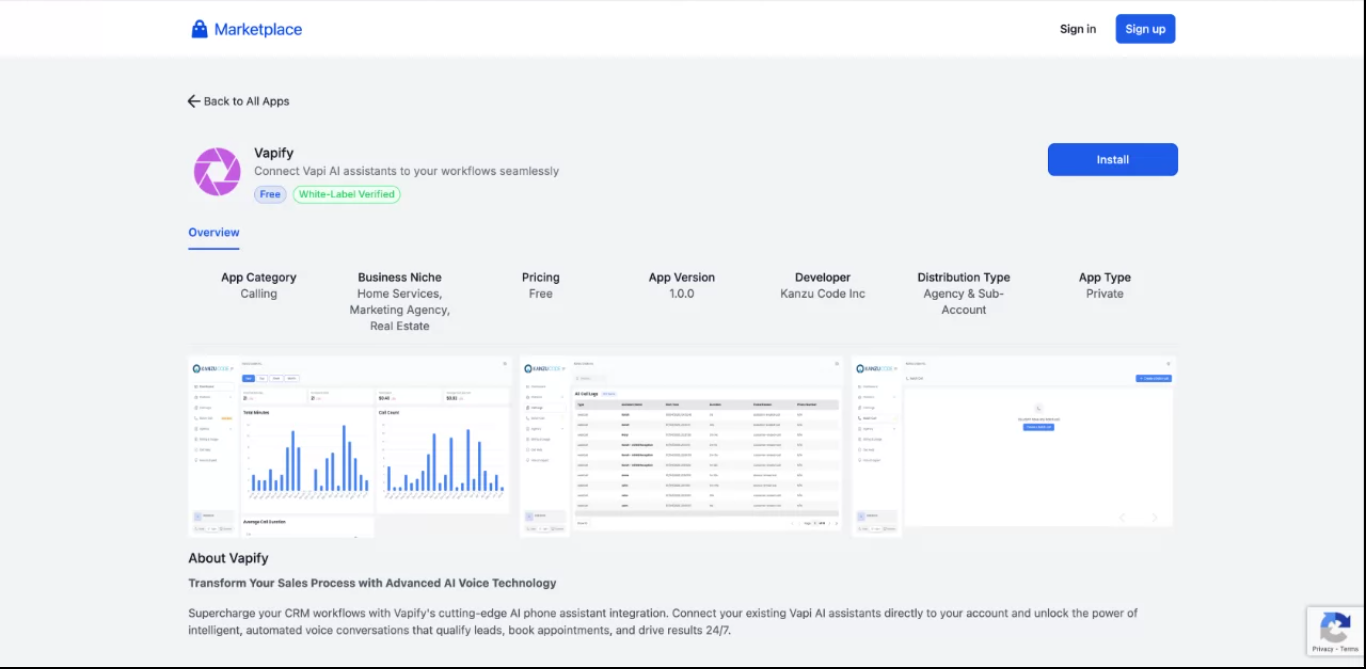
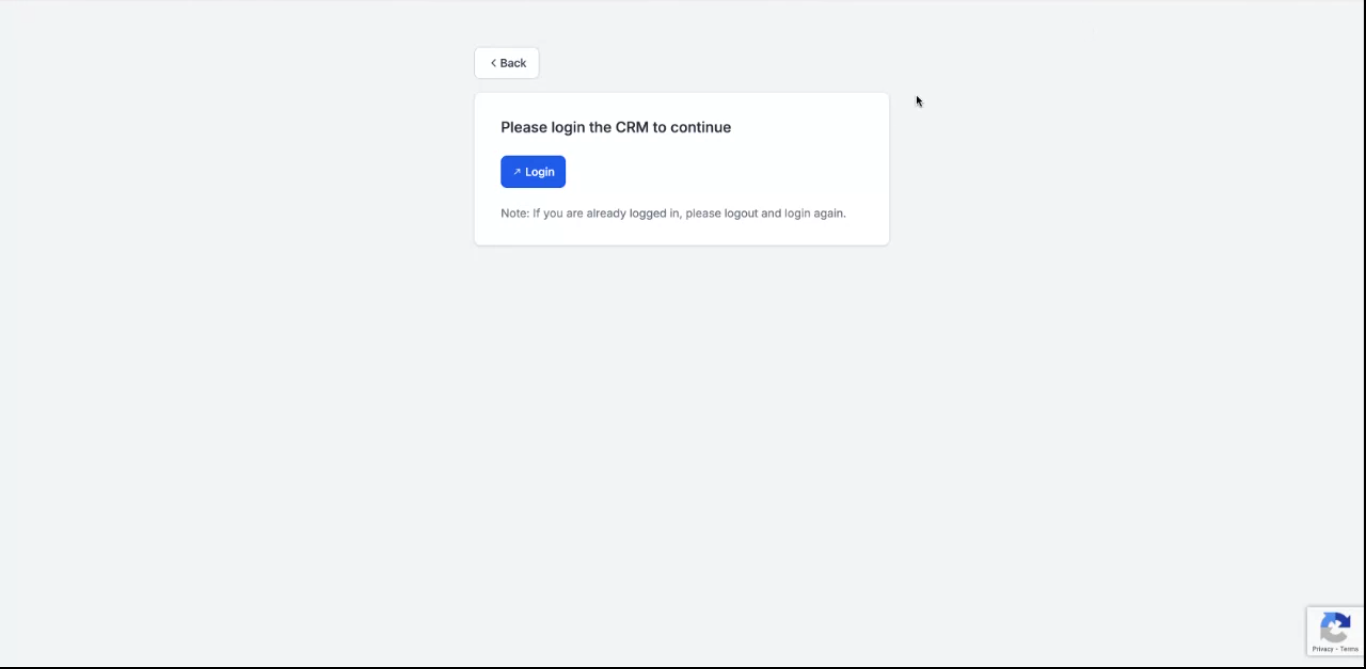
- Click through to Vapify login, sign in with your agency account, and approve the connection.
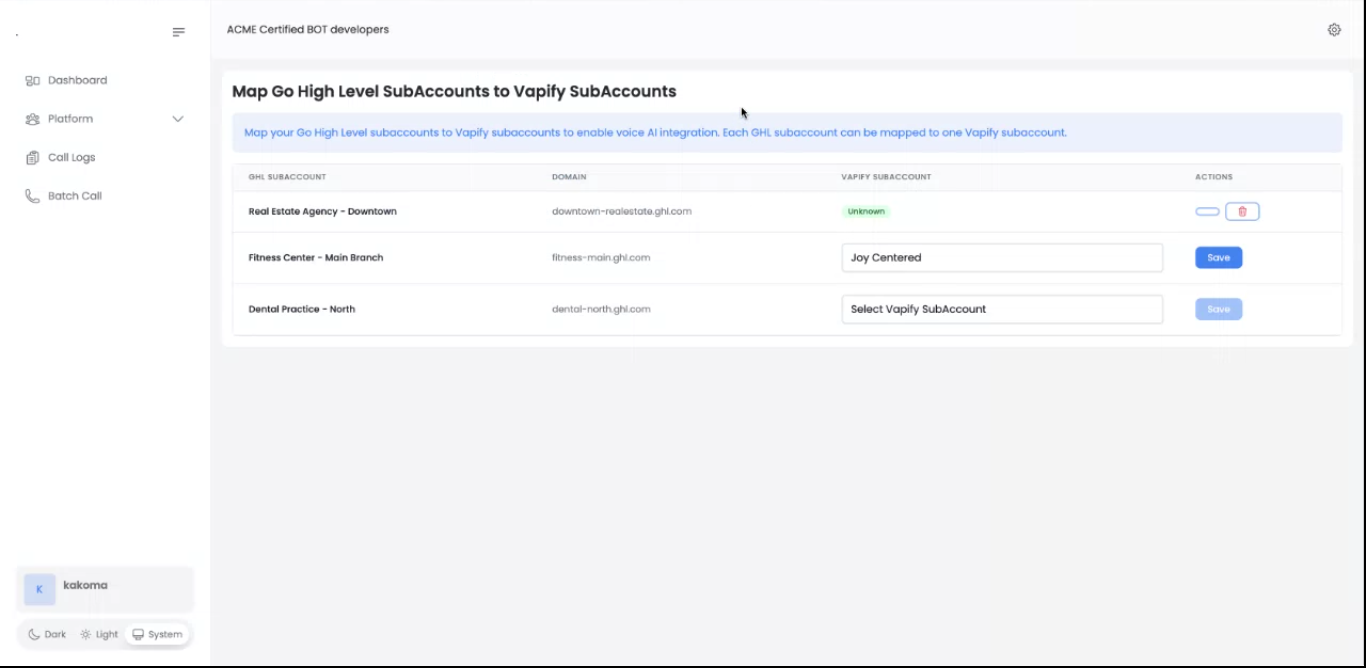
- For each client, pick a GHL subaccount and map it to the matching Vapify subaccount. Repeat for all clients and save.
- To trigger outbound calls from a workflow, add the Make Phone Call (Vapi Voice AI) action, choose the assistant from the mapped sub account, and target the workflow contact.
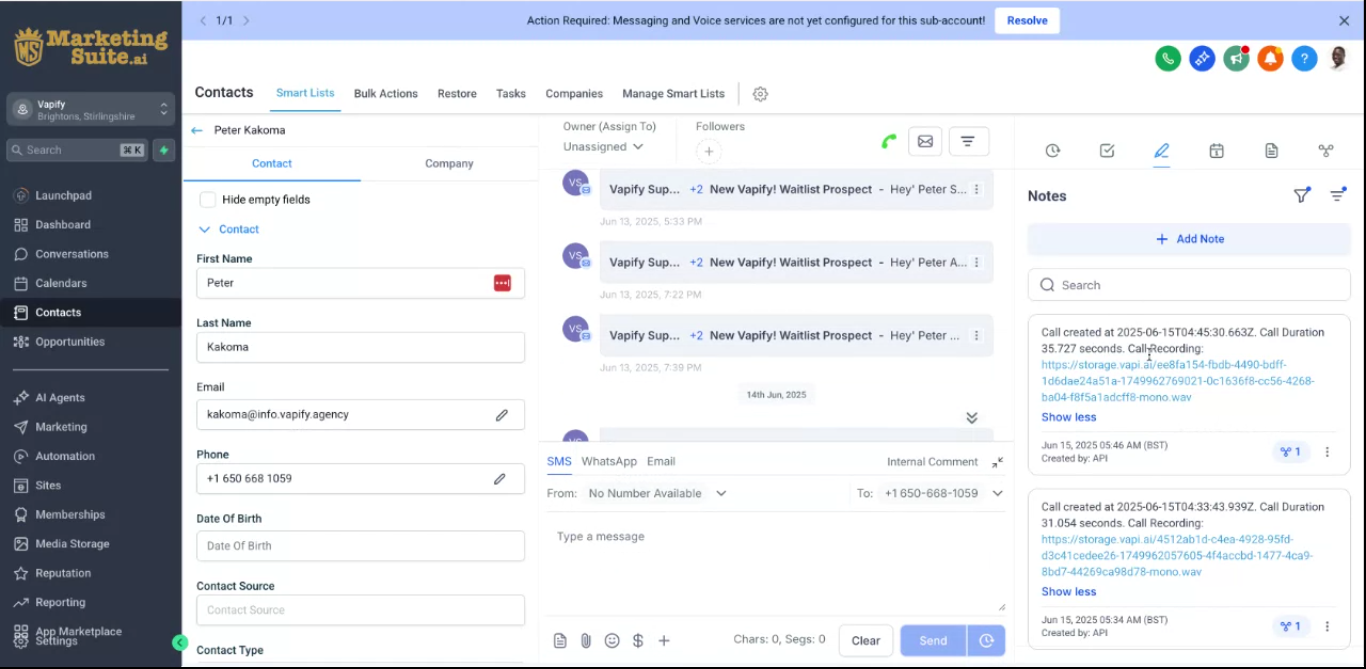
- Test one inbound and one outbound call, and confirm the recording attaches to the correct GHL contact.
Map one GHL subaccount to exactly one Vapify sub account. This keeps pricing and data isolated between clients, the same isolation principle covered in Understanding Sub Accounts.
What syncs automatically
- Inbound calls: matched to the GHL contact by phone number; recording, duration, and timestamp attach automatically.
- Outbound calls: triggered by workflow, batch, or direct call; recording attaches to the originating contact.
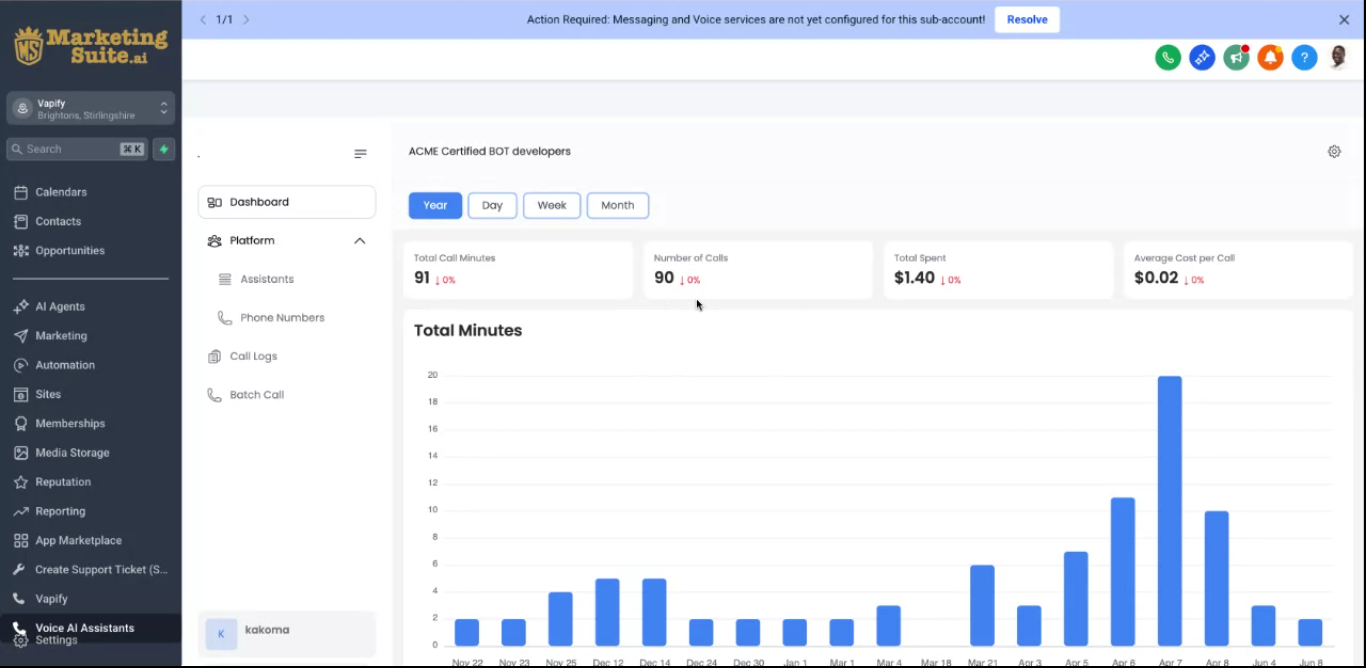
- What GHL users see: a Voice AI Assistants menu, plus Call summary and Call logs scoped to the mapped sub account.
What stays hidden from clients
Provider costs and prompts are never exposed. GHL users see only the assistants and prices set in the mapped Vapify sub account.Troubleshooting
- Recordings not showing: check the subaccount mapping, confirm the contact exists with a matching phone number, and confirm the call completed.
- Voice AI menu missing: confirm the subaccount is mapped and the user has relogged in.
- Workflow action fails: test the assistant directly in Vapify, verify the mapping, and confirm the contact’s phone number is valid.
- Wrong contact attached: check for duplicate phone numbers in GHL and standardize number formatting.
Related Articles
- Understanding Sub Accounts: the isolation model this integration relies on
- Call Logs: the Vapify-side call history behind GHL’s synced view
- AI Assistants: assistants that become callable through GHL