
Overview
You already have subaccounts and their respective assistants connected in Vapify. This guide focuses on wiring those assets into GoHighLevel (GHL) so calls, recordings, and workflows stay in sync without exposing your prompts or configs. What you get- Embed assistants in GHL without leaking prompts/config
- Keep your markup and pricing intact per subaccount
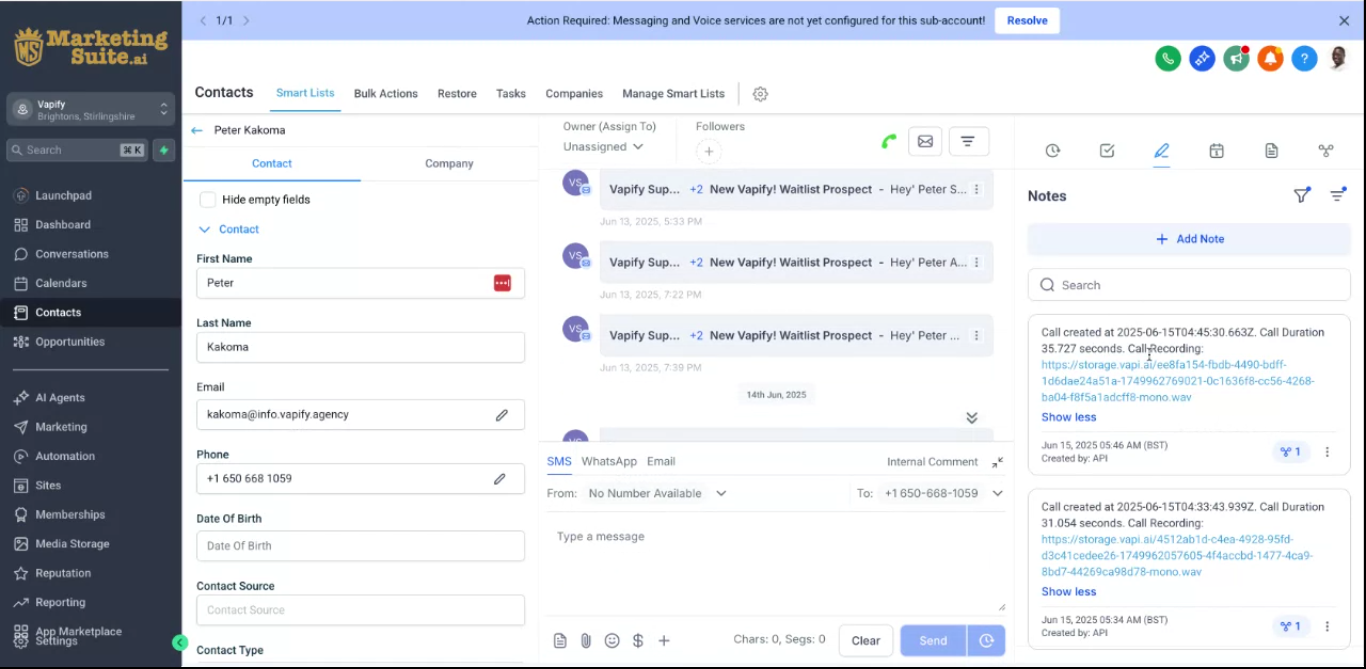
- Auto-attach call recordings to GHL contacts (inbound + outbound)
- Use a workflow action to trigger calls from GHL
- Respect subaccount isolation between clients
- Agencies already using Vapify
- Teams that want GHL to reflect Vapify call activity automatically
- Ops folks needing workflow-triggered calls with recordings synced back
Key benefits
- Protect your builds: Clients never see prompts or provider configs.
- Profit stays set: Your existing per-minute/monthly pricing in Vapify carries through; clients see only your prices.
- Zero manual upload: Every call auto-updates the matching GHL contact with recording, duration, and timestamp.
- Workflow-native calls: A GHL custom action lets you fire outbound calls with your chosen assistant.
- Clean isolation: GHL subaccounts map to Vapify subaccounts, so data never crosses clients.
Install and authenticate
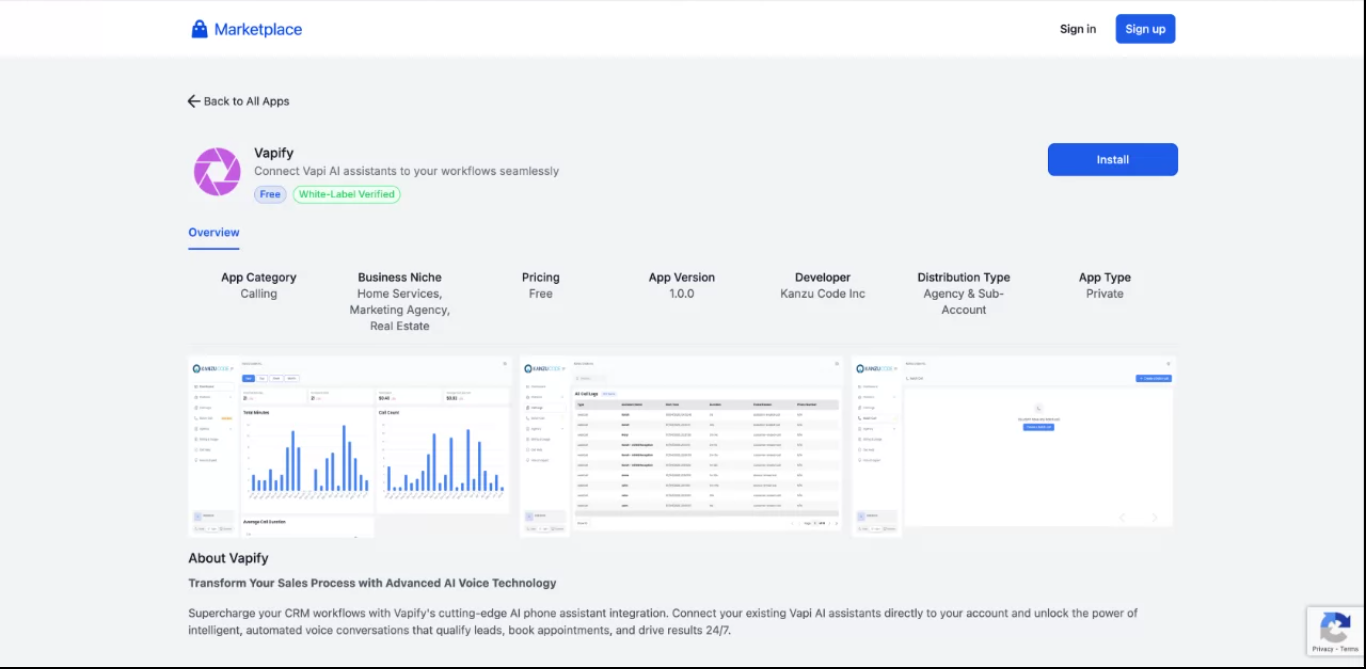
1) Install from the GHL marketplace
- In GHL, open the marketplace.
- Find Vapify Voice AI.
- Click Install and approve permissions.
2) Authenticate with Vapify
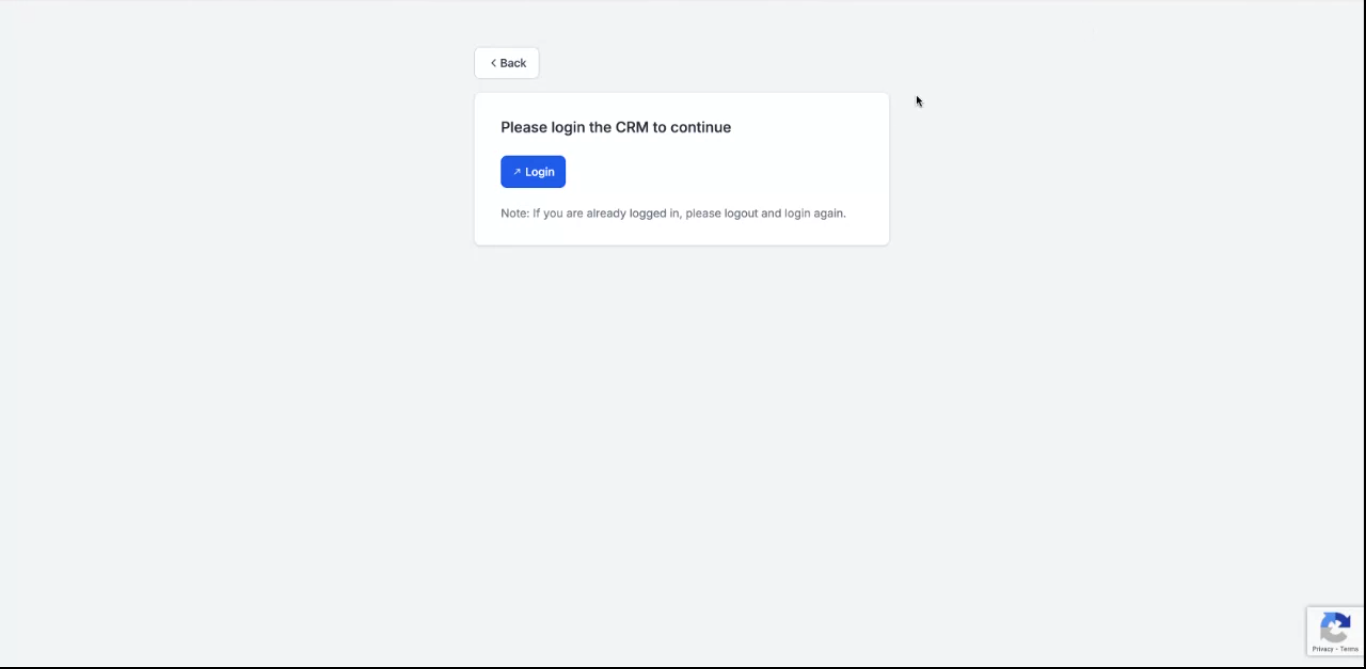
- Click through to Vapify login.
- Sign in with your agency account.
- Approve the connection.
Map GHL subaccounts to Vapify subaccounts
You already have subaccounts set up with assistants and pricing. Map each GHL subaccount to its matching Vapify subaccount so assistants, pricing, and contact syncing line up.- Pick a GHL subaccount from the dropdown.
- Select the matching Vapify subaccount.
- Repeat for all clients; save mappings.
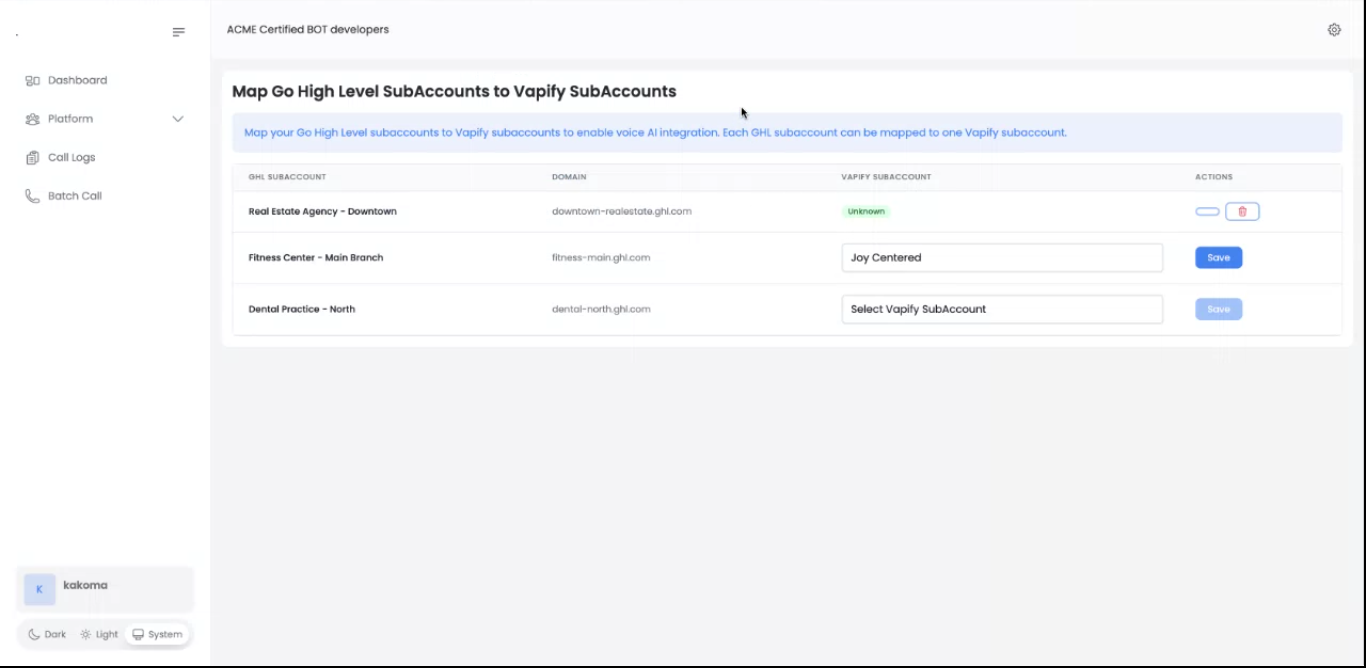
- Assistants available in that Vapify subaccount become callable in that GHL subaccount.
- Your per-minute/monthly pricing applies; clients never see provider costs.
- Contact lookup and recording sync use this mapping to keep data siloed.
Use the workflow action for outbound calls
Action: Make Phone Call (Vapi Voice AI)- Add it in any GHL workflow.
- Choose the assistant (from the mapped Vapify subaccount).
- Target the workflow contact; run the flow.
- Recording and call details attach back to that contact automatically.
What GHL users see after mapping
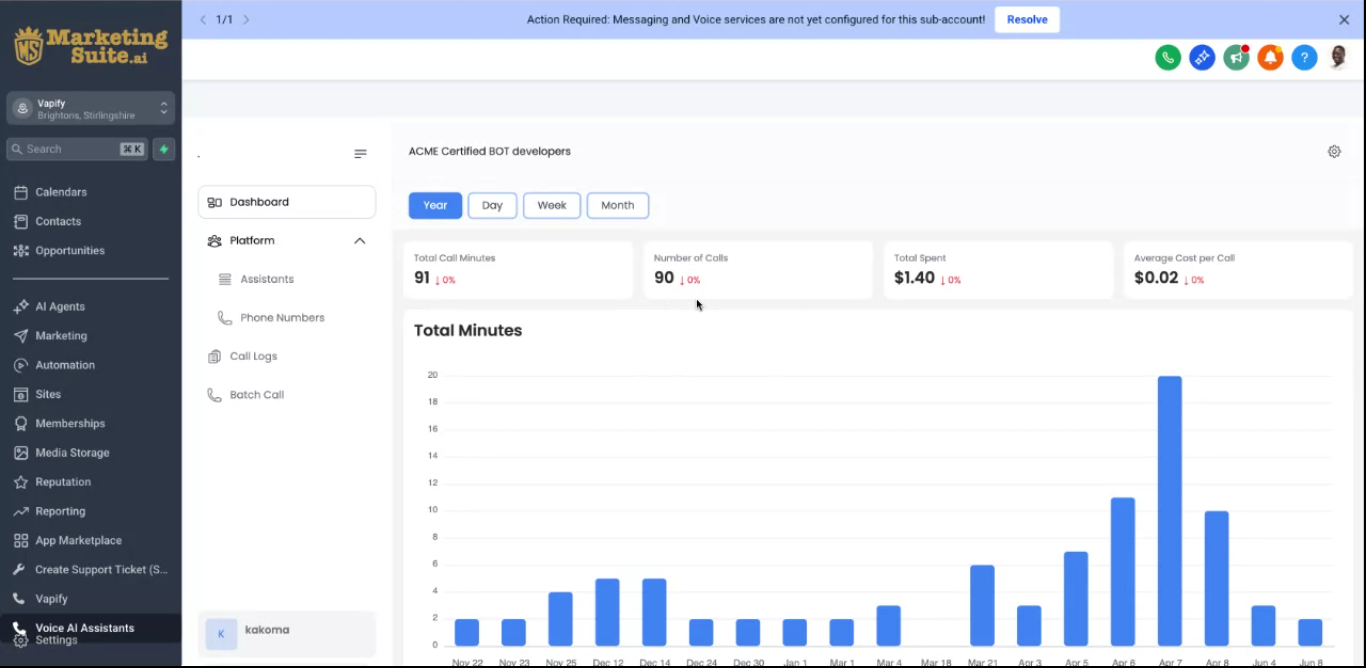
- Voice AI Assistants menu appears.
- Call summary and Call logs scoped to that subaccount.
- (Optional) Batch call triggers if you enable them in Vapify.
Call flow and syncing
Inbound
- Call hits your Vapify assistant (configured in your provider).
- Integration finds the mapped GHL subaccount and matches the contact by phone.
- Recording, duration, and timestamp attach to that contact in GHL.
Outbound
- Triggered by workflow action, batch, or direct call.
- Assistant dials the contact; conversation runs with your existing prompts.
- Recording and details attach to the originating GHL contact.
Best practices for existing Vapify setups
- Map one-to-one: Map each GHL subaccount to its own Vapify subaccount for clean isolation and pricing.
- Preconfigure assistants: Finalize prompts, and add phone numbers if you need phone-call assistants, before exposing to GHL.
- Keep pricing aligned: Verify per-minute/monthly pricing is set in the mapped subaccount before go-live.
- Number hygiene: Standardize phone formats in GHL to improve contact matching.
- Batch with care: Enable batch calls only for trusted clients; monitor volumes.
Troubleshooting quick hits
- Recordings not showing: Check subaccount mapping, confirm contact exists/phone matches, refresh contact, verify call completed.
- Voice AI menu missing: Ensure subaccount is mapped and user relogged; confirm assistants exist in the mapped Vapify subaccount.
- Workflow action fails: Test the assistant in Vapify, verify mapping, ensure contact phone is valid, and review Vapi logs.
- Wrong contact attached: Look for duplicate phone numbers in GHL and standardize formatting; confirm mapping.
FAQs (Vapify customers)
Do clients see my provider costs or prompts?No. They see only the assistants and prices you expose via the mapped Vapify subaccount. Can I use different assistants per GHL subaccount?
Yes. Assistants available in the mapped Vapify subaccount are the only ones shown/callable. What if a contact does not exist in GHL?
We will create it on inbound; best practice is to keep contacts current to avoid duplicates. Does disconnecting a mapping remove history?
No. Existing recordings stay on the contact; future syncing stops until remapped. Any limits on call sync?
The integration has none; respect Vapi and GHL API rate limits, especially with batches.
Next steps
- Install from the GHL marketplace.
- Authenticate to Vapify.
- Map each GHL subaccount to the correct Vapify subaccount.
- Test an inbound and an outbound call; confirm recordings appear on the contact.
- Enable for clients and, if needed, add the workflow action to your automations.