> ## Documentation Index
> Fetch the complete documentation index at: https://docs.vapify.agency/llms.txt
> Use this file to discover all available pages before exploring further.
# Contacts
> A per–sub account address book that fills itself from calls and bookings, and that you can also manage by hand.
## Overview
**Contacts** is each sub account's own address book. It holds the people your client's voice
assistants talk to and book — captured automatically from calls and appointments, importable from
GoHighLevel, and editable by hand.
Contacts are **scoped to a single sub account** and isolated between clients, the same way pricing and
call data are (see [Understanding Sub Accounts](/running-your-agency/understanding-sub-accounts)). When
you manage more than one client, use the sub account selector to choose whose contacts you're viewing.
Contacts live in the sidebar, just below **Calendar** — the two work together: an appointment booked
through Calendar creates or updates the matching contact automatically.
## How contacts get created
You rarely start from an empty list. A contact can arrive four ways:
| Source | How it's created | Shown as |
| --------------- | --------------------------------------------------------------------------------------------- | ------------ |
| **Manual** | You add it yourself from the Contacts page (or via the API). | `manual` |
| **Voice call** | Created automatically the first time an assistant handles a call, matched by phone number. | `voice call` |
| **Appointment** | Created (or matched) automatically when the assistant books an appointment, matched by email. | `import` |
| **GoHighLevel** | Synced in from a mapped GHL sub account. | `ghl sync` |
Because calls and bookings populate contacts on their own, the list grows as your client's assistants
work — no manual data entry required. Add contacts by hand only when you want a record ahead of the
first interaction.
## The contacts list
Open **Contacts** in the sidebar to see every contact for the selected sub account.
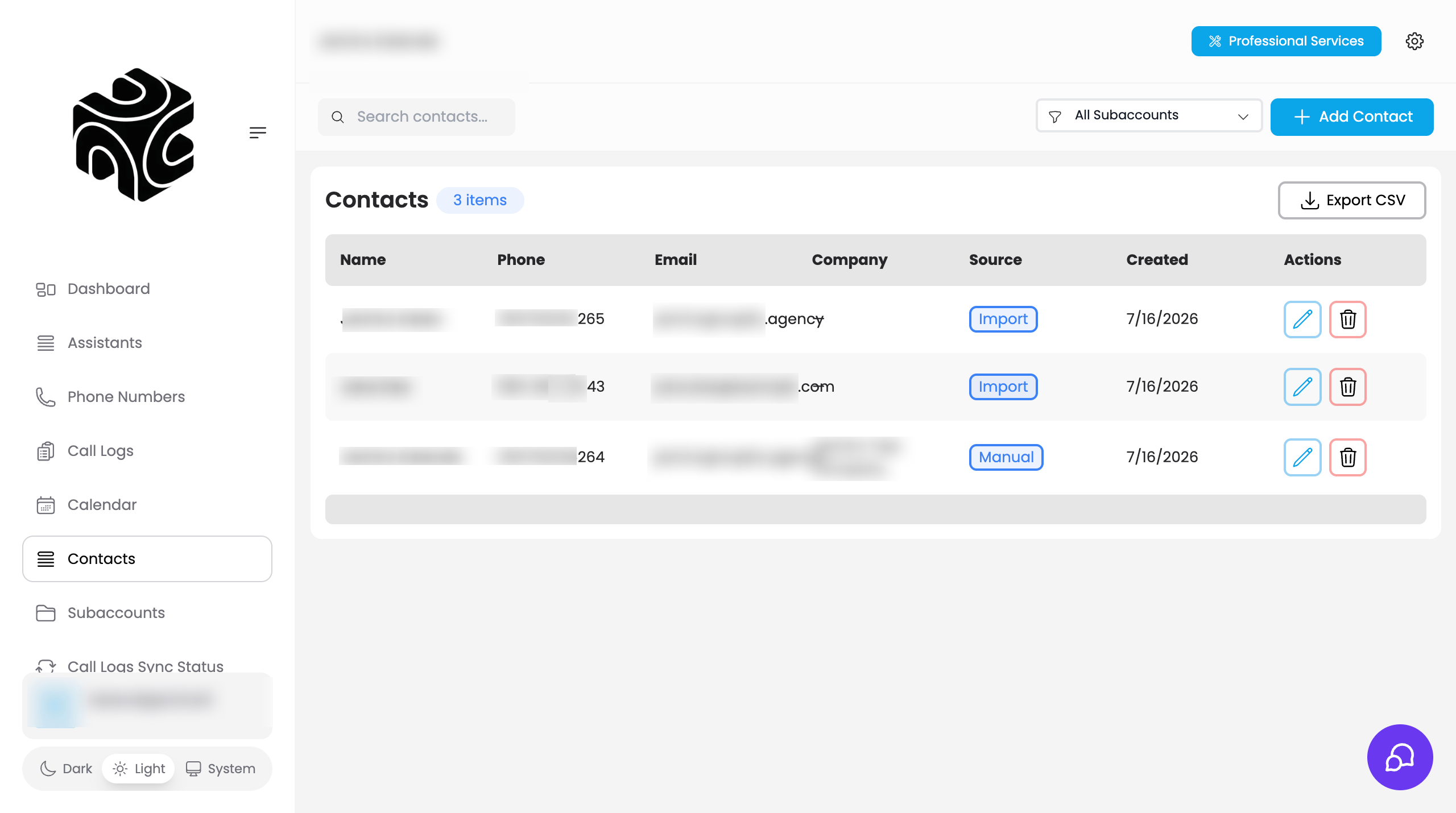 * **Columns:** Name, Phone, Email, Company, Source, Created, and row actions.
* **Search:** filter by name, email, or phone.
* **Sub account filter:** agency users can narrow the list to one client's contacts.
* **Add Contact:** create a contact by hand (see below).
* **Row actions:** edit or delete any contact.
* **Export CSV:** download the current contacts as a spreadsheet (`contacts-export-.csv`), including
every field — company, website, address, tags, custom fields, notes, and source.
### Add a contact manually
Click **Add Contact** and fill in the details. A contact needs **at least an email or a phone number**;
everything else is optional:
* **Columns:** Name, Phone, Email, Company, Source, Created, and row actions.
* **Search:** filter by name, email, or phone.
* **Sub account filter:** agency users can narrow the list to one client's contacts.
* **Add Contact:** create a contact by hand (see below).
* **Row actions:** edit or delete any contact.
* **Export CSV:** download the current contacts as a spreadsheet (`contacts-export-.csv`), including
every field — company, website, address, tags, custom fields, notes, and source.
### Add a contact manually
Click **Add Contact** and fill in the details. A contact needs **at least an email or a phone number**;
everything else is optional:
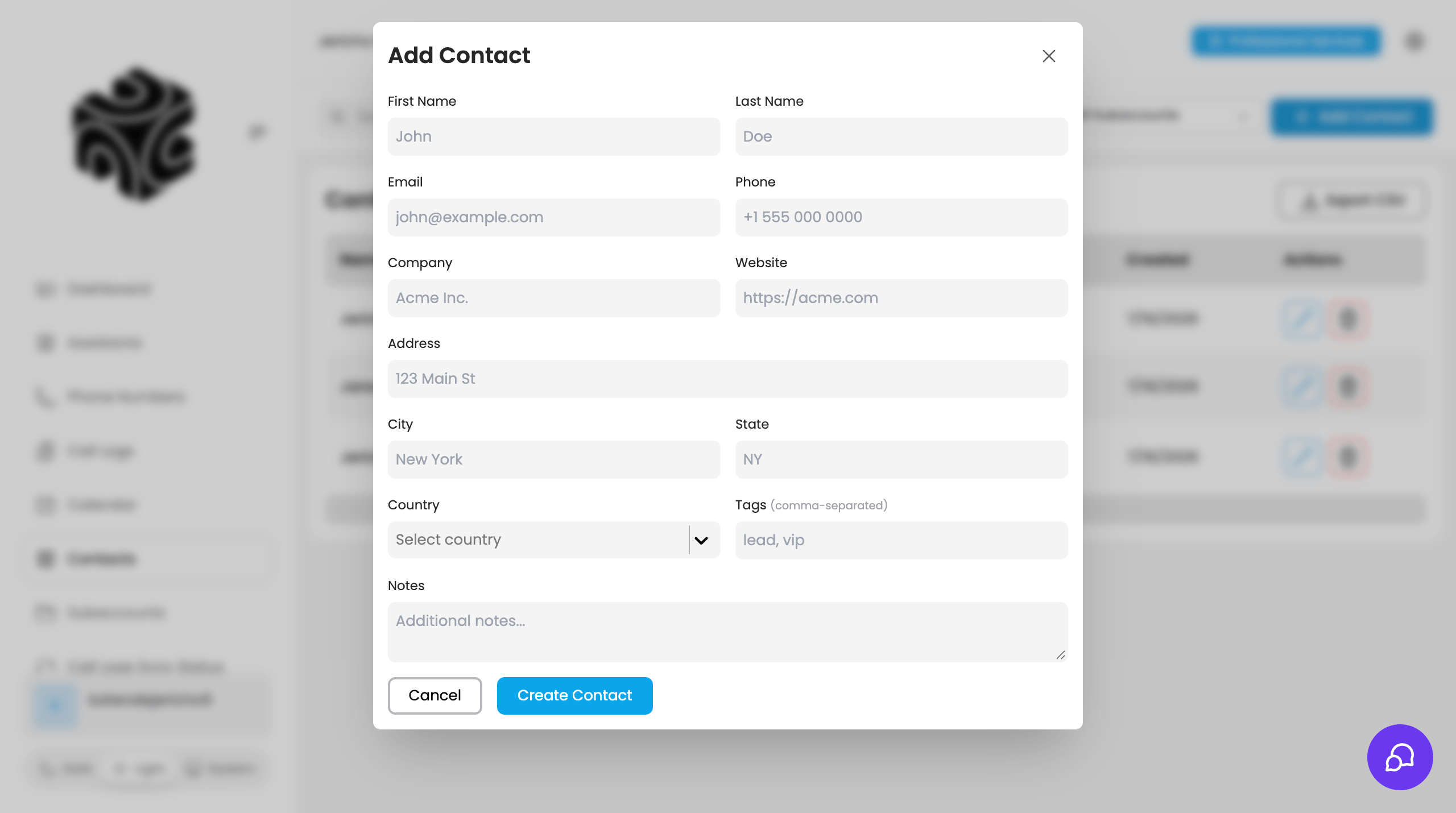 * Name (first, last), email, phone
* Company, website
* Address, city, state, country
* Notes and tags
* Custom fields
Duplicate emails or phone numbers within the same sub account are rejected, so the same person doesn't
get two records.
## The contact detail page
Click a contact to open its detail page, which has two tabs:
* Name (first, last), email, phone
* Company, website
* Address, city, state, country
* Notes and tags
* Custom fields
Duplicate emails or phone numbers within the same sub account are rejected, so the same person doesn't
get two records.
## The contact detail page
Click a contact to open its detail page, which has two tabs:
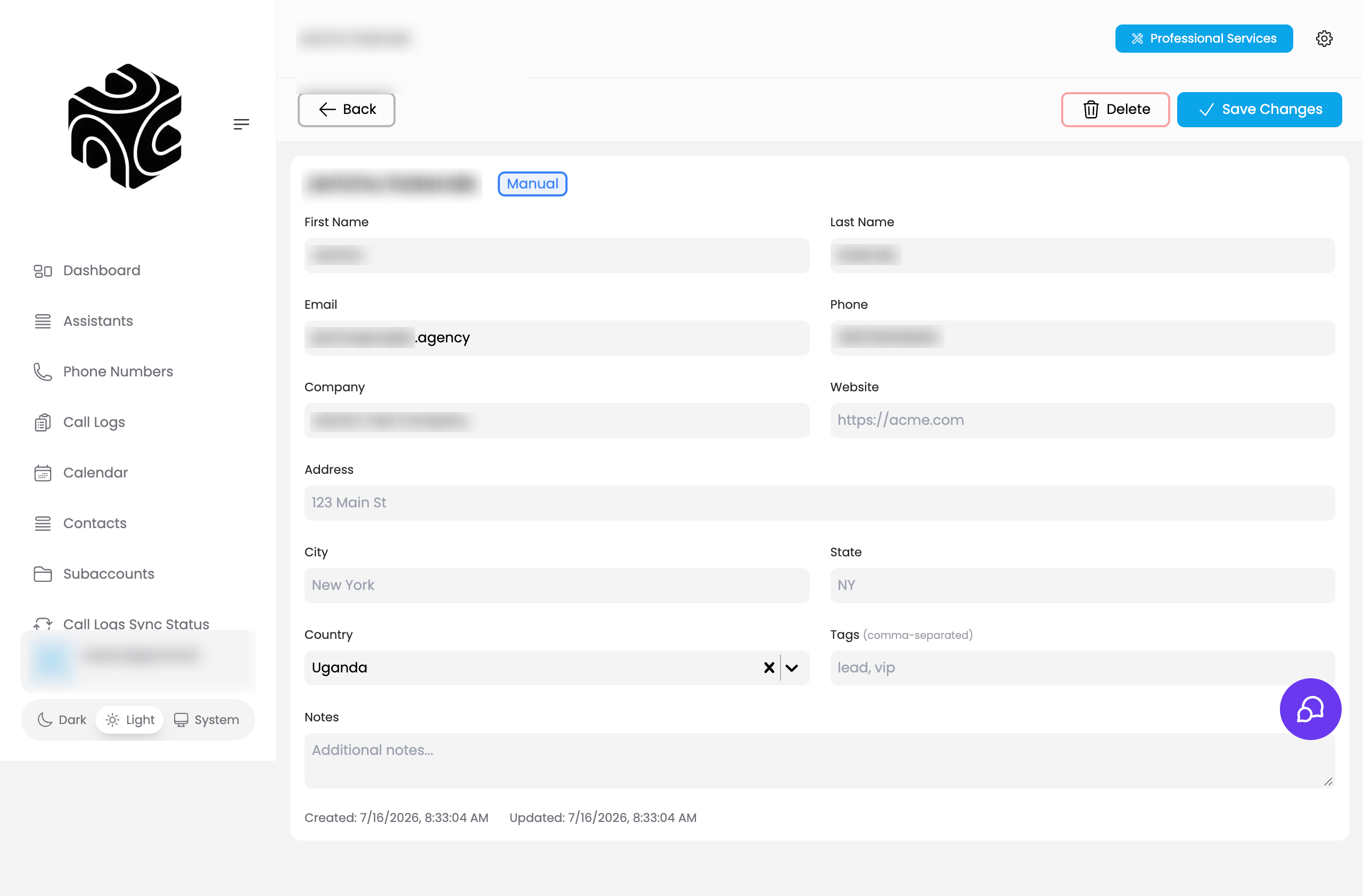 * **Details** — the full record: contact info, company, address, tags, notes, and custom fields.
* **Appointments** — every booking linked to this contact. Open one to see the appointment, or
**cancel** it from here. This is the same booking data managed in [Calendar](/integrations/calendar).
## Related Articles
* [Calendar](/integrations/calendar): where appointments are scheduled — bookings create and link contacts.
* [GoHighLevel](/integrations/gohighlevel): map a GHL sub account to sync its contacts in.
* [Understanding Sub Accounts](/running-your-agency/understanding-sub-accounts): why contacts stay isolated per client.
* **Details** — the full record: contact info, company, address, tags, notes, and custom fields.
* **Appointments** — every booking linked to this contact. Open one to see the appointment, or
**cancel** it from here. This is the same booking data managed in [Calendar](/integrations/calendar).
## Related Articles
* [Calendar](/integrations/calendar): where appointments are scheduled — bookings create and link contacts.
* [GoHighLevel](/integrations/gohighlevel): map a GHL sub account to sync its contacts in.
* [Understanding Sub Accounts](/running-your-agency/understanding-sub-accounts): why contacts stay isolated per client.