> ## Documentation Index
> Fetch the complete documentation index at: https://docs.vapify.agency/llms.txt
> Use this file to discover all available pages before exploring further.
# Call Logs
> Search, filter, and review every call across your agency, including transcripts and recordings.
## Overview
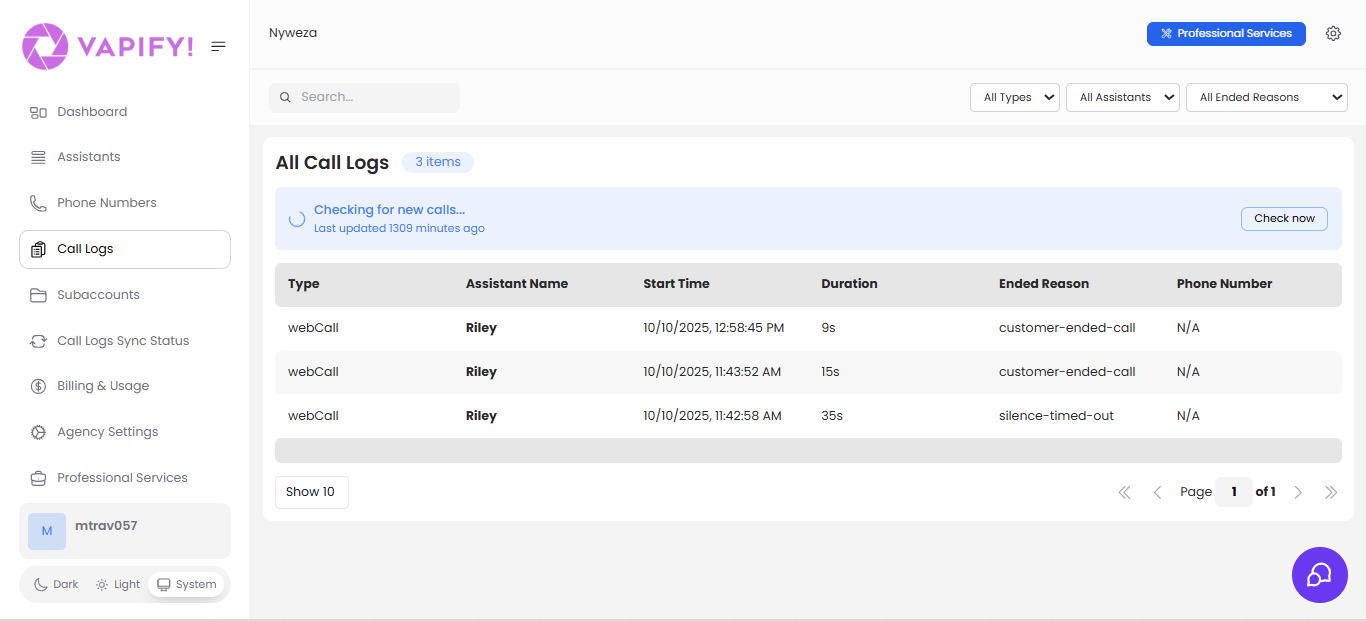
**Call Logs** shows every call processed through your agency's voice assistants, with search, filters, transcripts, and recordings for troubleshooting and quality review.
 Call logs only sync after a sub account's Billing Start Date is set. If a sub account hasn't gone live, its calls won't appear here.
## Common Tasks
### Find a specific call
Use the search bar to match assistant names, phone numbers, or any text in the logs. Combine with the three filter dropdowns:
* **All Types**: `webCall` (voice widget/browser) or `Phone Call` (PSTN)
* **All Assistants**: scope to one assistant across all your sub accounts
* **All Ended Reasons**: e.g., `customer-ended-call`, `silence-timed-out`, `assistant-ended-call`, `assistant-error`, `exceeded-max-duration`
### Check for new calls
The page shows "Last updated X minutes ago" and auto-checks periodically. Click **Check now** to refresh immediately without reloading the page.
### Review a call in detail
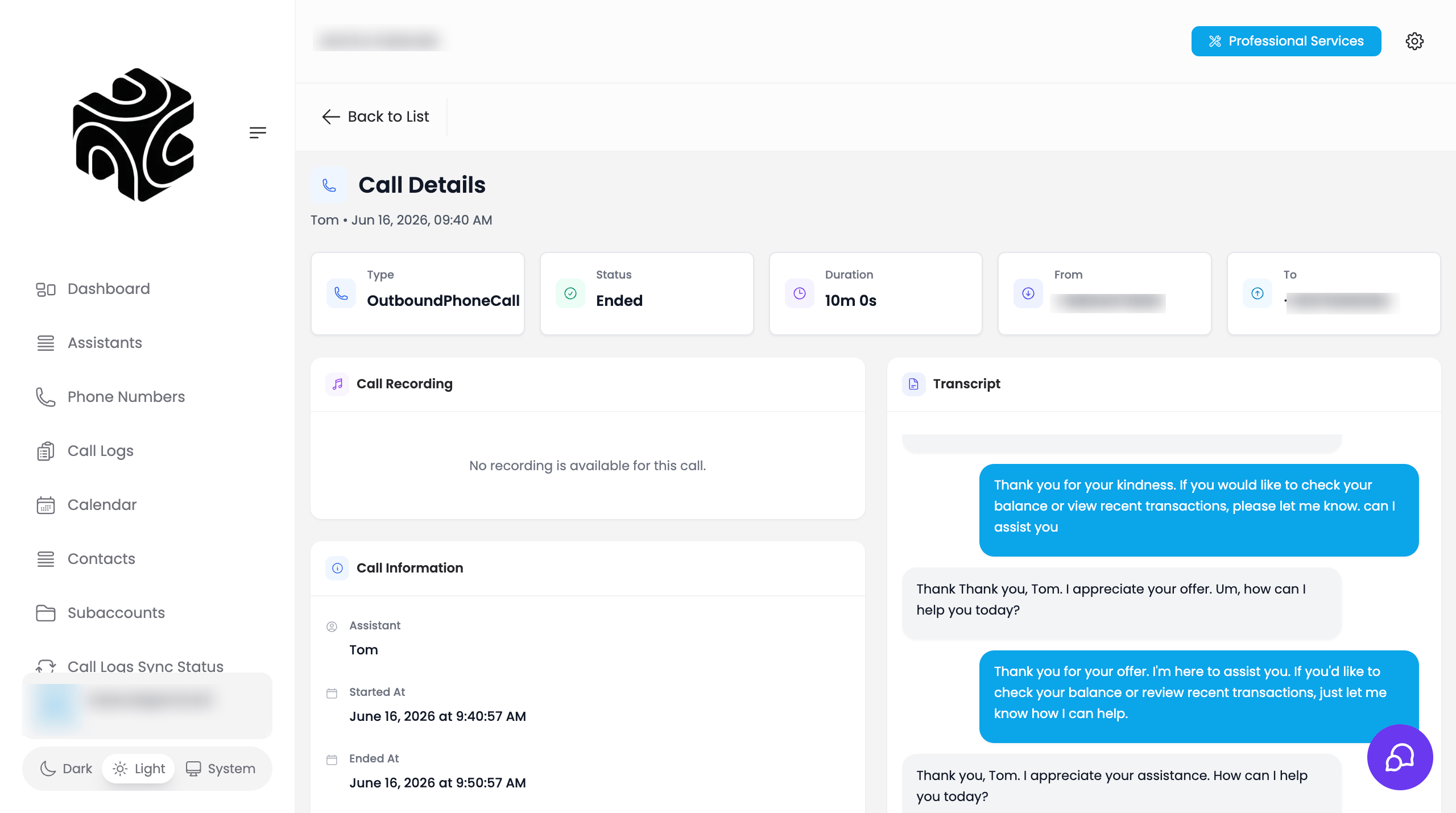
Click any row to open its transcript, recording (if enabled), full timestamps, and cost/billing details.
Call logs only sync after a sub account's Billing Start Date is set. If a sub account hasn't gone live, its calls won't appear here.
## Common Tasks
### Find a specific call
Use the search bar to match assistant names, phone numbers, or any text in the logs. Combine with the three filter dropdowns:
* **All Types**: `webCall` (voice widget/browser) or `Phone Call` (PSTN)
* **All Assistants**: scope to one assistant across all your sub accounts
* **All Ended Reasons**: e.g., `customer-ended-call`, `silence-timed-out`, `assistant-ended-call`, `assistant-error`, `exceeded-max-duration`
### Check for new calls
The page shows "Last updated X minutes ago" and auto-checks periodically. Click **Check now** to refresh immediately without reloading the page.
### Review a call in detail
Click any row to open its transcript, recording (if enabled), full timestamps, and cost/billing details.
 ### Change how many calls are shown
Use the **Show X** dropdown (10/25/50/100) at the bottom left, and the page navigation controls at the bottom right.
## Related Articles
* [Dashboard](/running-your-agency/dashboard): the aggregate metrics behind these logs
* [AI Assistants](/running-your-agency/ai-assistants): which assistant handled which call
* [Understanding Sub Accounts](/running-your-agency/understanding-sub-accounts): why calls don't appear before go-live
### Change how many calls are shown
Use the **Show X** dropdown (10/25/50/100) at the bottom left, and the page navigation controls at the bottom right.
## Related Articles
* [Dashboard](/running-your-agency/dashboard): the aggregate metrics behind these logs
* [AI Assistants](/running-your-agency/ai-assistants): which assistant handled which call
* [Understanding Sub Accounts](/running-your-agency/understanding-sub-accounts): why calls don't appear before go-live