> ## Documentation Index
> Fetch the complete documentation index at: https://docs.vapify.agency/llms.txt
> Use this file to discover all available pages before exploring further.
# Calendar
> Connect Google Calendar, define availability, publish event types, and manage bookings per client.
## Overview
Each sub account gets its own scheduling workspace: connect an external calendar, define working hours, publish bookable event types, manage bookings, and create API keys for automated or AI-driven scheduling.
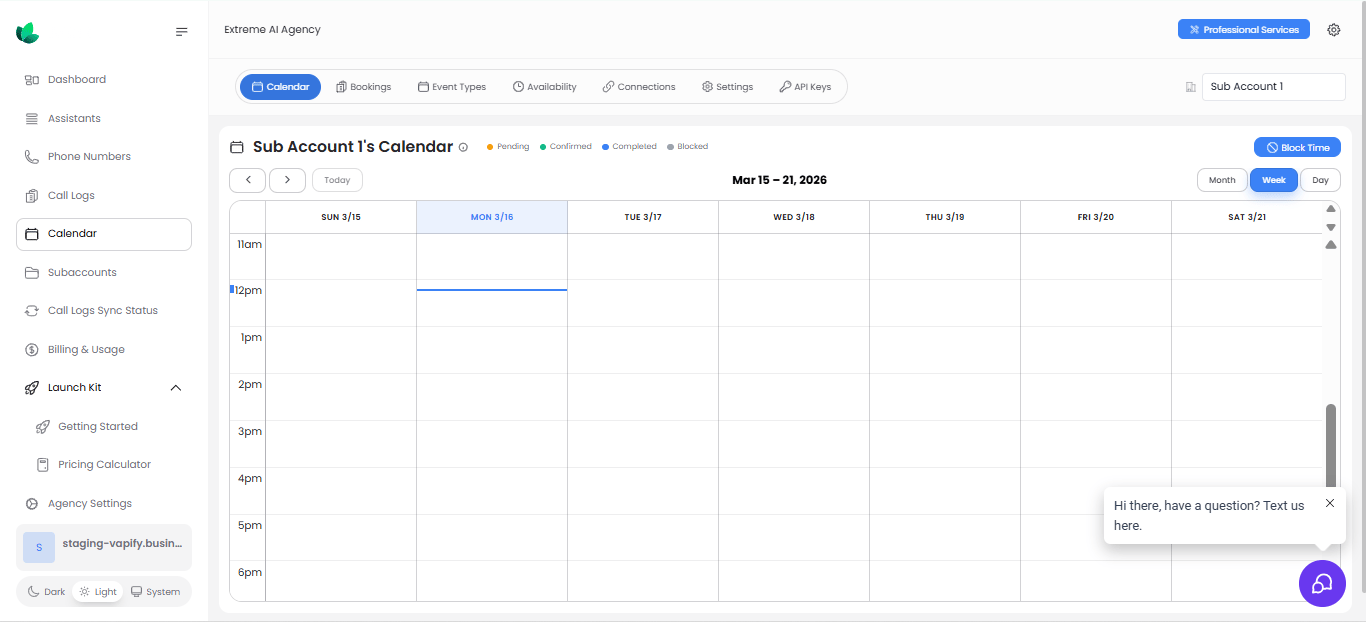 Calendar settings are per sub account. Use the subaccount selector in the top-right of the Calendar page before making changes.
## The six tabs
| Tab | What it's for |
| ---------------- | ------------------------------------------------------------------------ |
| **Calendar** | Month/week/day view of bookings, plus quick time-blocking |
| **Bookings** | Filter and review scheduled appointments by time, status, and event type |
| **Event Types** | The bookable services your client offers, with shareable booking links |
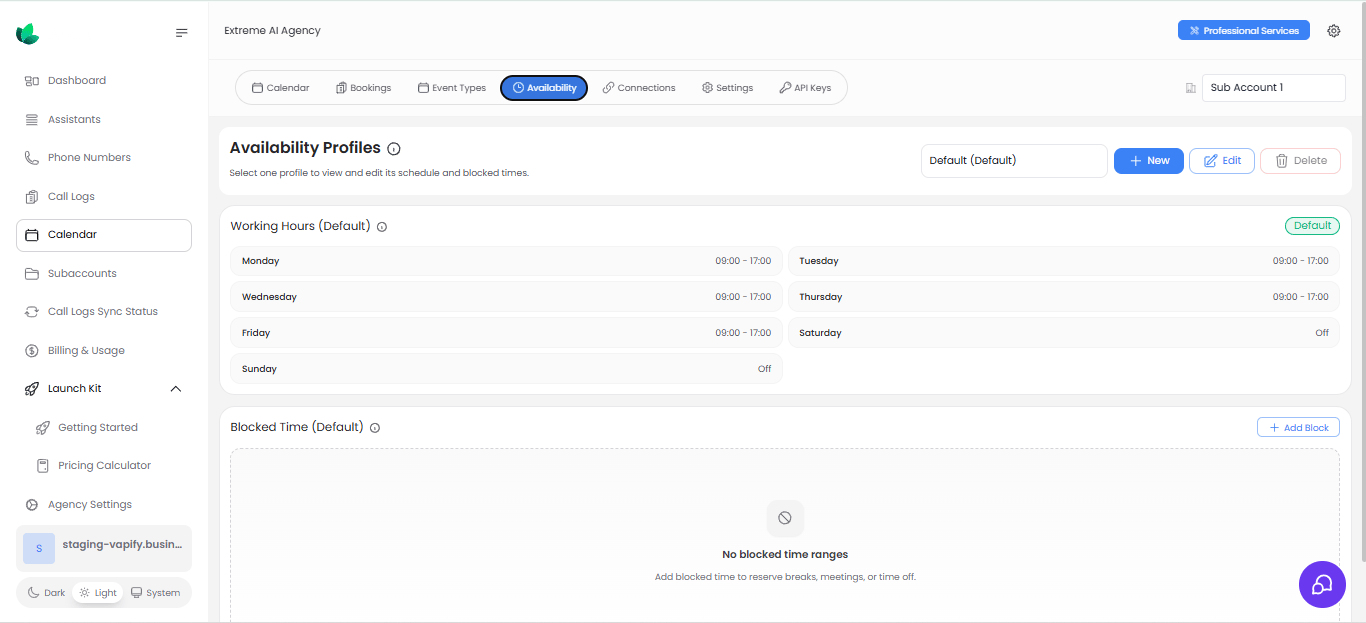
| **Availability** | Working hours, availability profiles, and blocked time |
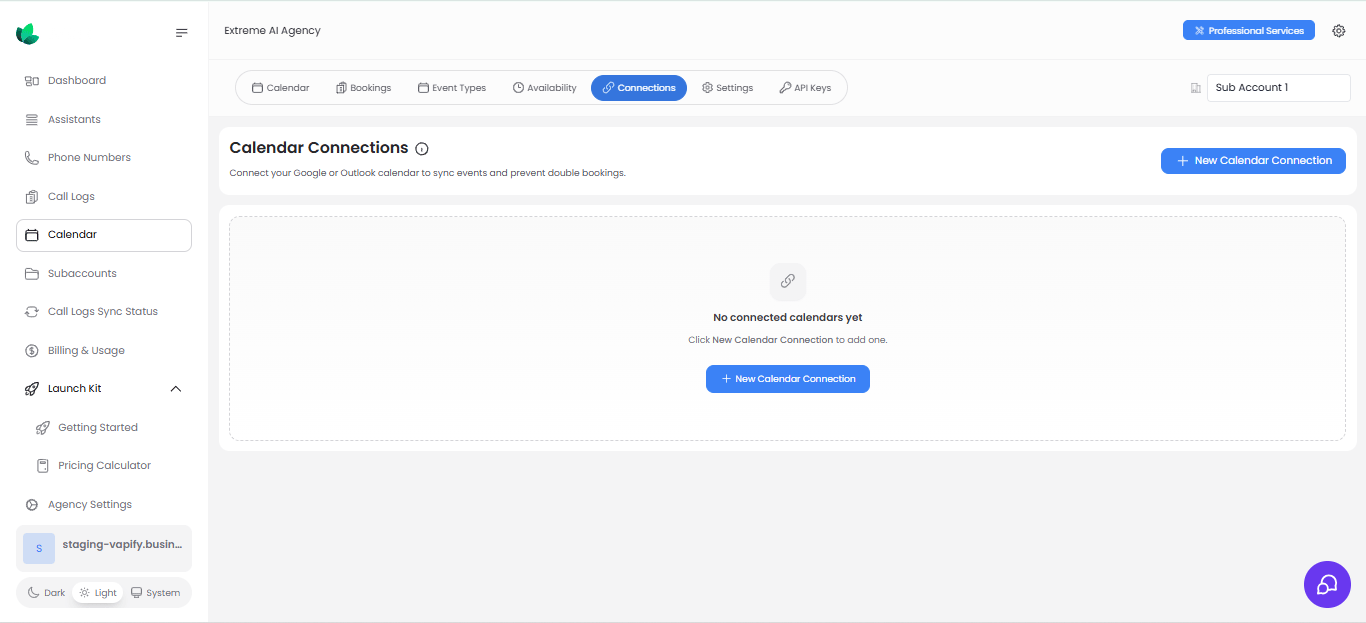
| **Connections** | Connect a provider calendar to avoid double bookings |
| **Settings** | Timezone, duration defaults, notice windows, location, and notifications |
| **API Keys** | Scoped keys for AI agents, workflows, and third-party integrations |
## Recommended setup order
1. Connect a calendar provider (**Connections** tab)
2. Configure availability and blocked time
3. Create event types
4. Review booking settings
5. Share booking links or create API keys
## Connecting a provider
Open **Calendar → Connections**, click **New Calendar Connection**, and choose a provider.
Calendar settings are per sub account. Use the subaccount selector in the top-right of the Calendar page before making changes.
## The six tabs
| Tab | What it's for |
| ---------------- | ------------------------------------------------------------------------ |
| **Calendar** | Month/week/day view of bookings, plus quick time-blocking |
| **Bookings** | Filter and review scheduled appointments by time, status, and event type |
| **Event Types** | The bookable services your client offers, with shareable booking links |
| **Availability** | Working hours, availability profiles, and blocked time |
| **Connections** | Connect a provider calendar to avoid double bookings |
| **Settings** | Timezone, duration defaults, notice windows, location, and notifications |
| **API Keys** | Scoped keys for AI agents, workflows, and third-party integrations |
## Recommended setup order
1. Connect a calendar provider (**Connections** tab)
2. Configure availability and blocked time
3. Create event types
4. Review booking settings
5. Share booking links or create API keys
## Connecting a provider
Open **Calendar → Connections**, click **New Calendar Connection**, and choose a provider.
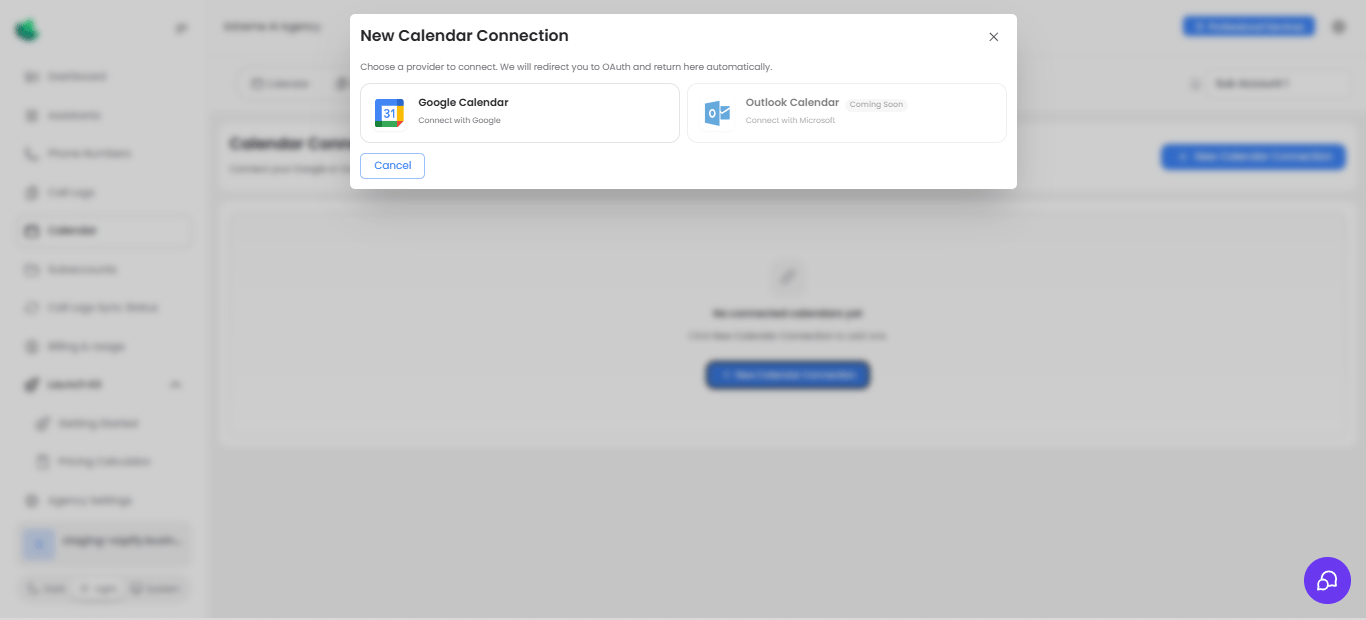 * **Google Calendar**: available now
* **Outlook Calendar**: shown as Coming Soon
Connect the calendar before publishing booking links, so Vapify can account for existing events and help prevent double booking.
## Setting availability
The **Availability** tab sets working hours, additional availability profiles, and blocked time for breaks or time off.
* **Google Calendar**: available now
* **Outlook Calendar**: shown as Coming Soon
Connect the calendar before publishing booking links, so Vapify can account for existing events and help prevent double booking.
## Setting availability
The **Availability** tab sets working hours, additional availability profiles, and blocked time for breaks or time off.
 ## Creating event types
Each event type defines a booking name, duration, buffer time, location (e.g., a Google Meet link or physical address), and which availability profile to use. Use **Copy URL** to share the booking link once live.
## Creating event types
Each event type defines a booking name, duration, buffer time, location (e.g., a Google Meet link or physical address), and which availability profile to use. Use **Copy URL** to share the booking link once live.
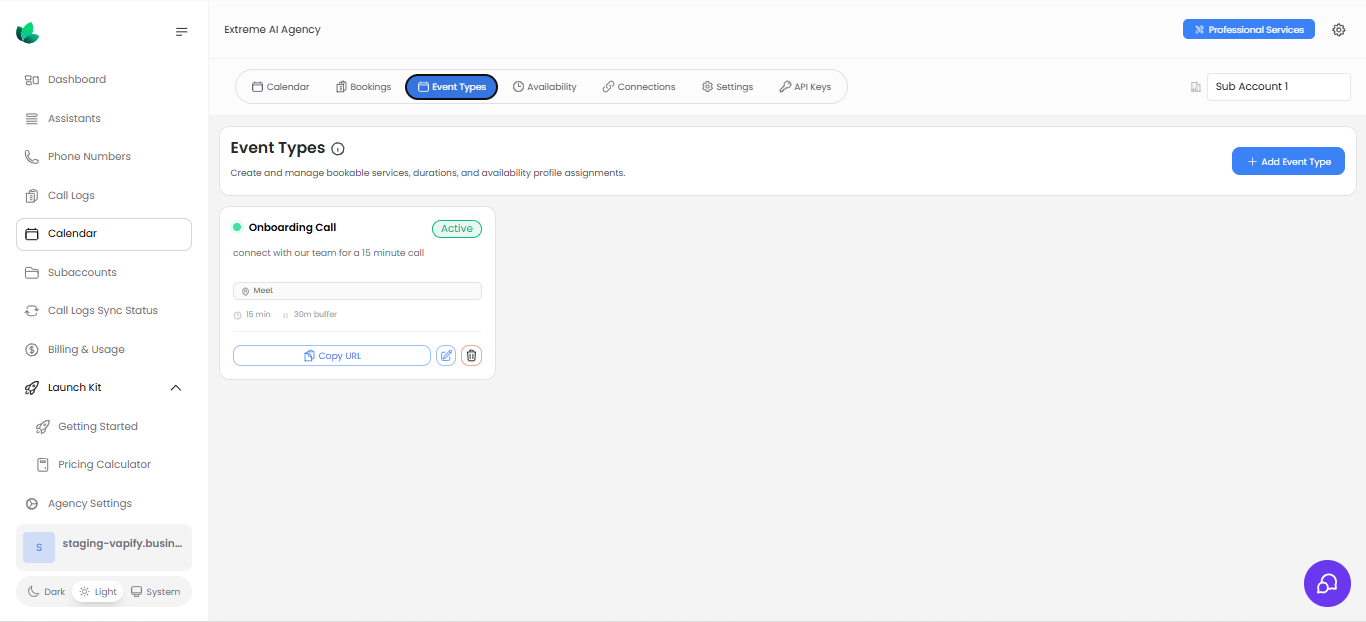 Create a separate event type per appointment purpose rather than reusing one link for everything. It keeps duration, buffers, and reporting clean.
## Reviewing bookings and settings
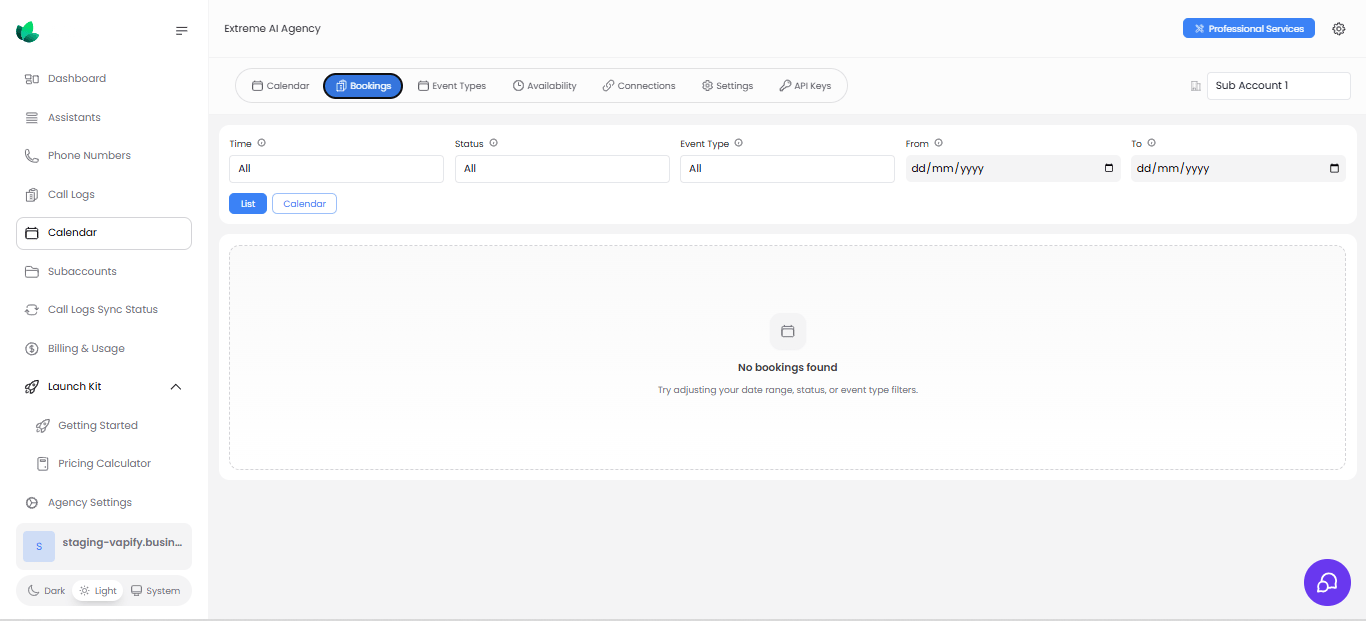
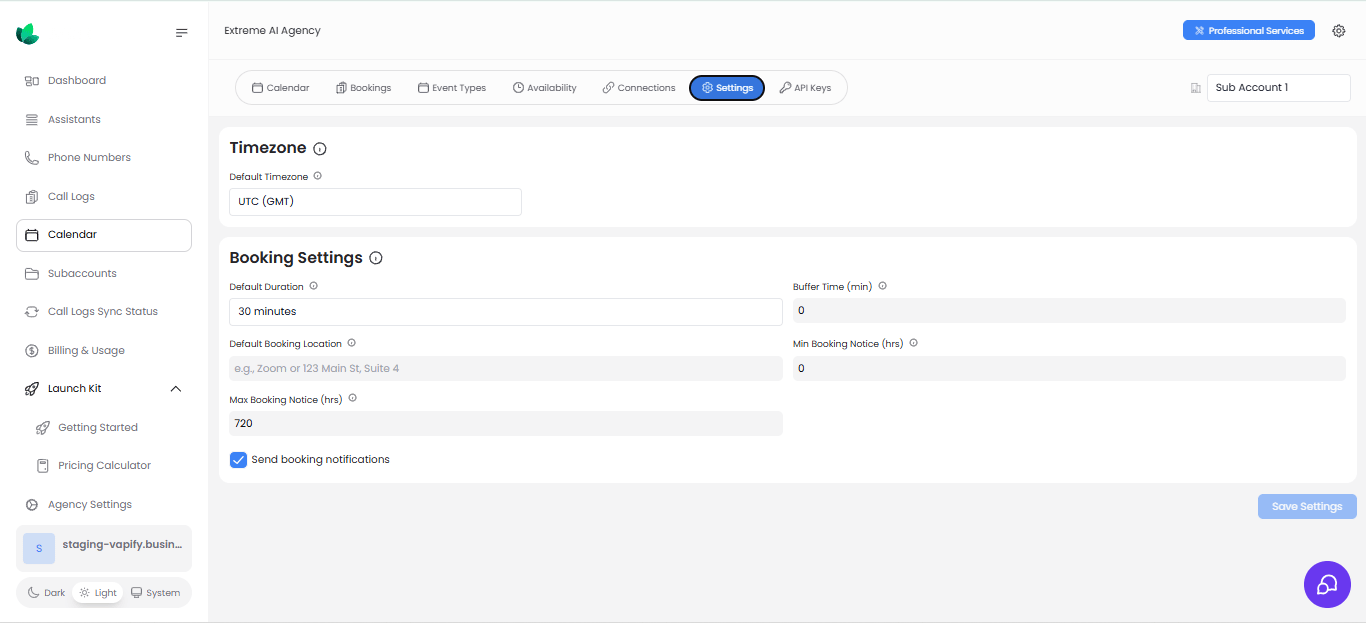
Use the **Bookings** tab to filter by date, status, or event type, and the **Settings** tab to set timezone, duration defaults, and notice windows.
Create a separate event type per appointment purpose rather than reusing one link for everything. It keeps duration, buffers, and reporting clean.
## Reviewing bookings and settings
Use the **Bookings** tab to filter by date, status, or event type, and the **Settings** tab to set timezone, duration defaults, and notice windows.
 ## Creating a calendar API key
From the **API Keys** tab, click **Create API Key** and choose from these permissions: **Check availability**, **Book appointments**, **Get bookings**, **Cancel bookings**.
## Creating a calendar API key
From the **API Keys** tab, click **Create API Key** and choose from these permissions: **Check availability**, **Book appointments**, **Get bookings**, **Cancel bookings**.
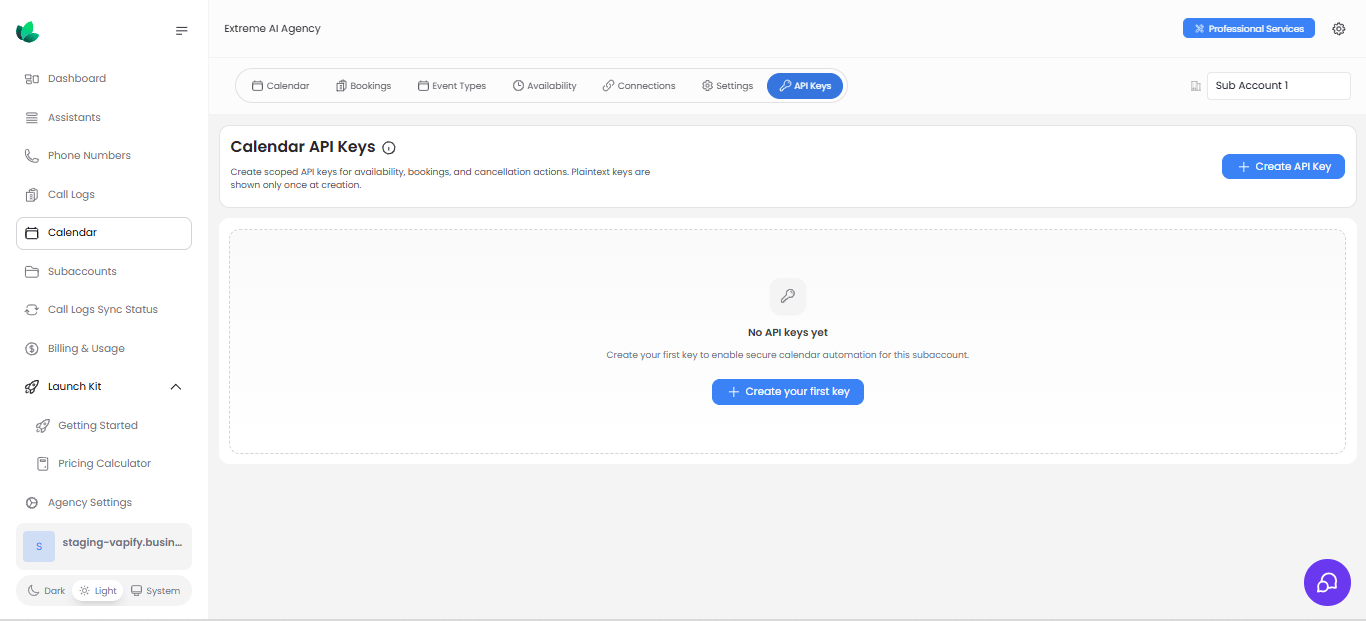
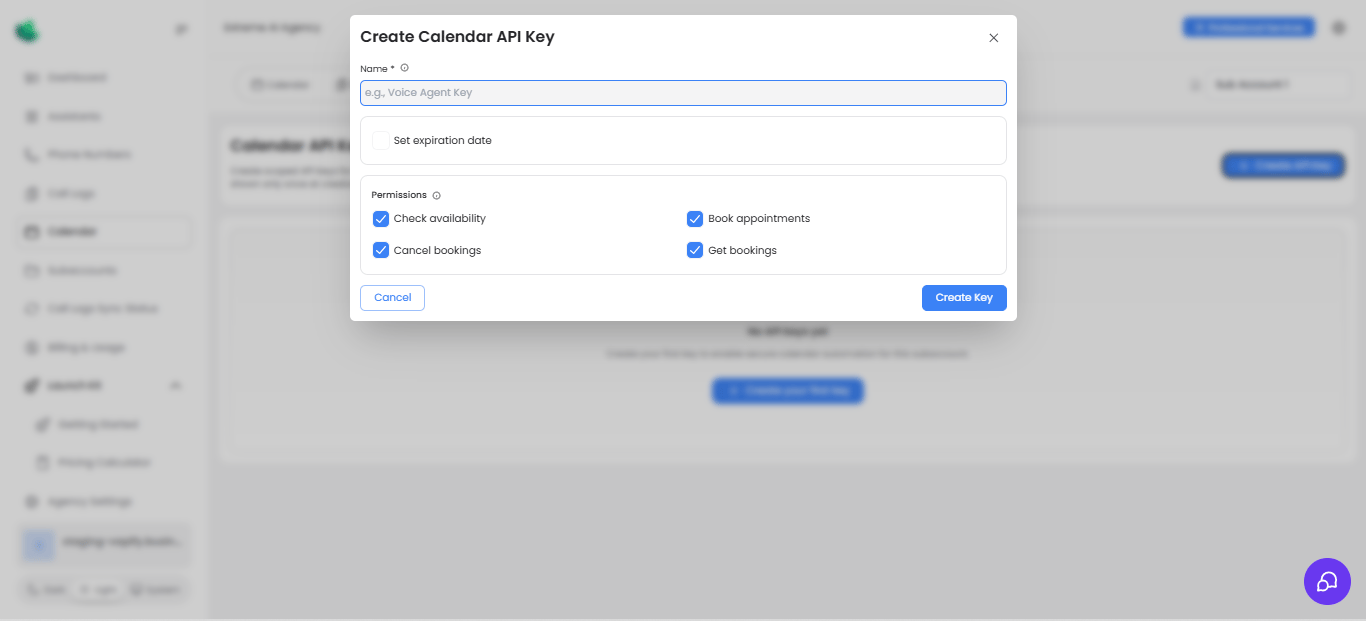 The plain-text key is shown only once at creation. Store it securely before closing the modal.
The plain-text key is used by AI agents, workflows, or external systems to check availability and manage bookings.
## Related Articles
* [Understanding Sub Accounts](/running-your-agency/understanding-sub-accounts): how calendar settings stay isolated per client
The plain-text key is shown only once at creation. Store it securely before closing the modal.
The plain-text key is used by AI agents, workflows, or external systems to check availability and manage bookings.
## Related Articles
* [Understanding Sub Accounts](/running-your-agency/understanding-sub-accounts): how calendar settings stay isolated per client