> ## Documentation Index
> Fetch the complete documentation index at: https://docs.vapify.agency/llms.txt
> Use this file to discover all available pages before exploring further.
# Connect Your AI Provider
> Connect Vapi or Retell so Vapify can retrieve your voice assistants and track usage for billing.
**Estimated time:** 4 minutes
## Overview
Connect your voice AI provider so Vapify can pull in your assistants and track usage for billing. This is the second step of the onboarding wizard.
## Prerequisites
* [Agency branded](/getting-started/brand-your-agency)
* A Vapi or Retell account with at least one assistant already created
## Steps
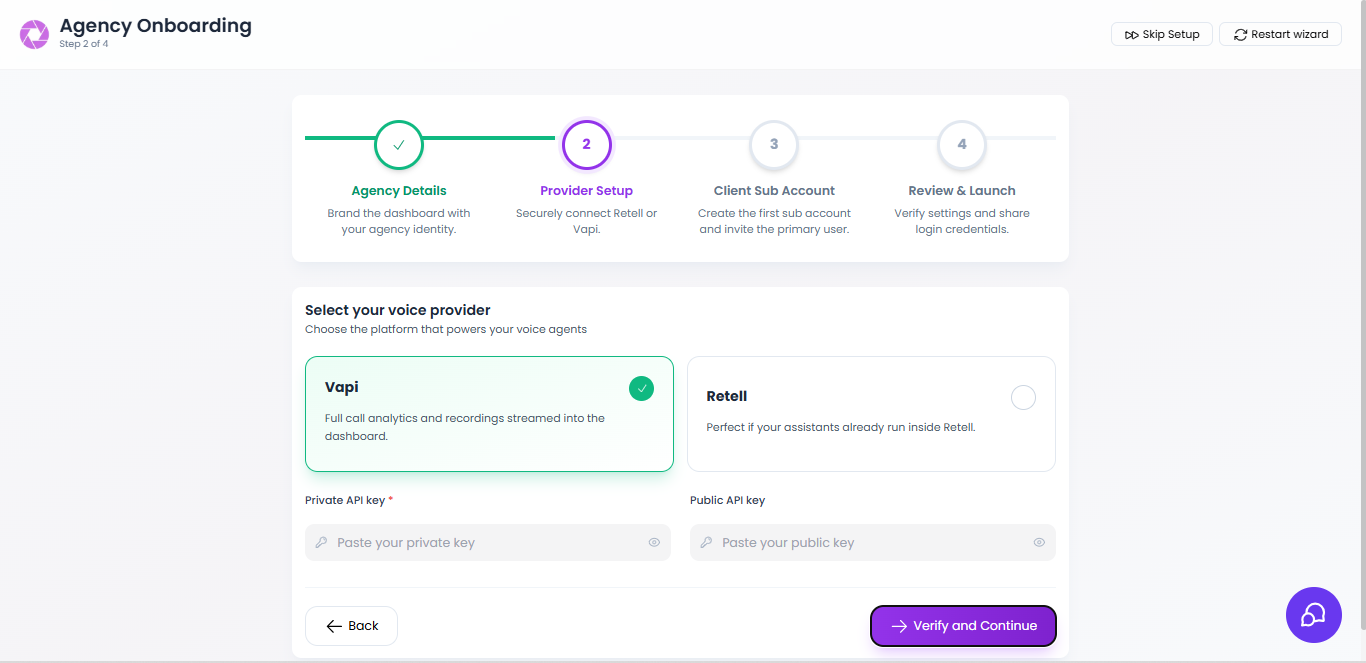 In your [Vapi dashboard](https://vapi.ai), open **API Keys** and copy both your **Private API key** and **Public API key**.
In Vapify's **Provider Setup** step (or later, in a sub account's **General** tab), select **Vapi**.
Paste your **Private API key** in the first field and your **Public API key** in the second field.
Click **Verify and Continue**.
In your Retell dashboard, open **Settings → API Keys** and copy your API key.
In Vapify, select **Retell**.
Paste your API key and click **Verify and Continue**.
API keys grant full access to your provider account. Never share them publicly or commit them to version control. Vapify stores them encrypted and shows them partially masked afterward.
**Verify and Continue** tests your keys before proceeding. If verification fails, re-copy the key from your provider dashboard. Trailing spaces are the most common cause.
## Troubleshooting
* **Verification fails**: Re-copy the key; for Vapi, confirm the private and public keys aren't swapped.
* **Assistants don't sync**: Save the key again, then click **Refresh Assistant List** in the sub account's Assistants tab.
## Related Articles
* [Vapi](/integrations/vapi): key types, rotation, and limits
* [Retell AI](/integrations/retell): key setup details
* [Assign an AI Assistant](/getting-started/assign-an-ai-assistant): next step in the setup path
In your [Vapi dashboard](https://vapi.ai), open **API Keys** and copy both your **Private API key** and **Public API key**.
In Vapify's **Provider Setup** step (or later, in a sub account's **General** tab), select **Vapi**.
Paste your **Private API key** in the first field and your **Public API key** in the second field.
Click **Verify and Continue**.
In your Retell dashboard, open **Settings → API Keys** and copy your API key.
In Vapify, select **Retell**.
Paste your API key and click **Verify and Continue**.
API keys grant full access to your provider account. Never share them publicly or commit them to version control. Vapify stores them encrypted and shows them partially masked afterward.
**Verify and Continue** tests your keys before proceeding. If verification fails, re-copy the key from your provider dashboard. Trailing spaces are the most common cause.
## Troubleshooting
* **Verification fails**: Re-copy the key; for Vapi, confirm the private and public keys aren't swapped.
* **Assistants don't sync**: Save the key again, then click **Refresh Assistant List** in the sub account's Assistants tab.
## Related Articles
* [Vapi](/integrations/vapi): key types, rotation, and limits
* [Retell AI](/integrations/retell): key setup details
* [Assign an AI Assistant](/getting-started/assign-an-ai-assistant): next step in the setup path