> ## Documentation Index
> Fetch the complete documentation index at: https://docs.vapify.agency/llms.txt
> Use this file to discover all available pages before exploring further.
# Connect Stripe
> Connect your Stripe account so clients pay you directly, under your own branding.
**Estimated time:** 5-10 minutes
## Overview
Connect Stripe so your clients pay you directly through your own branded checkout. Vapify never holds your funds. Payments go straight to your Stripe account.
## Prerequisites
* [Provider connected](/getting-started/connect-your-ai-provider)
* A business you can register with Stripe (or an existing Stripe account)
## Steps
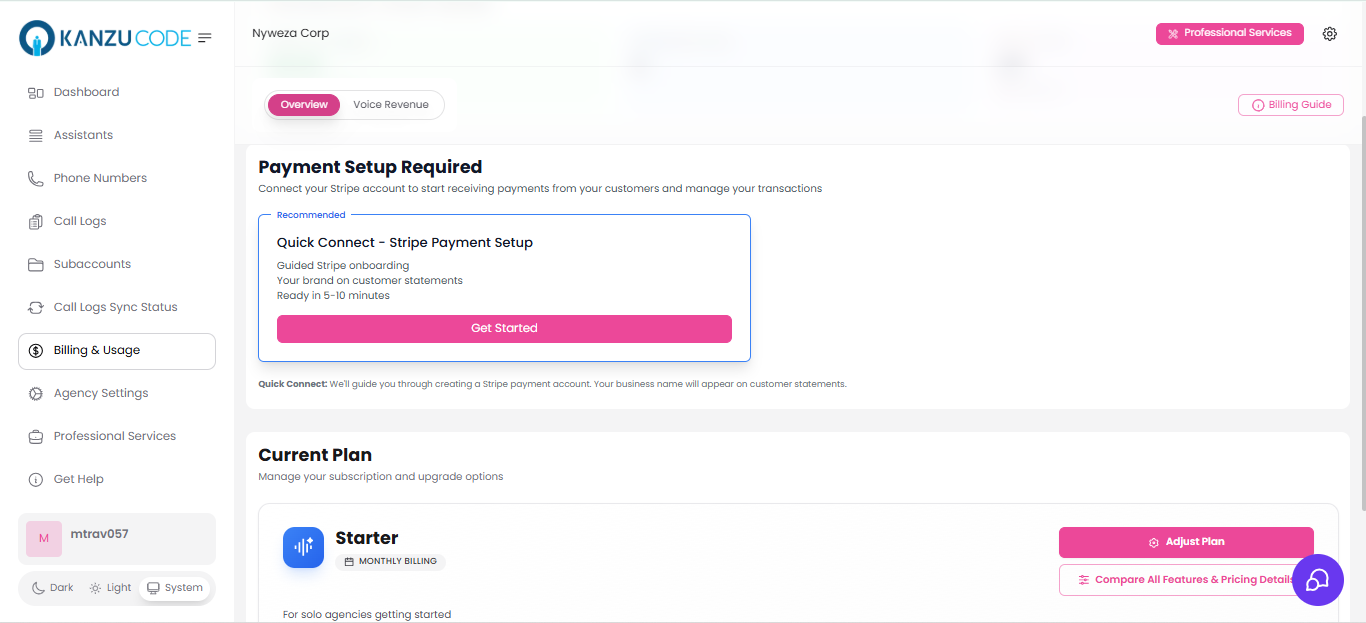
From **Billing & Usage**, find the **Connect Stripe Account** card and click **Get Started**.
You'll be redirected to Stripe. Complete Stripe's onboarding: business information, banking details for payouts, and identity verification.
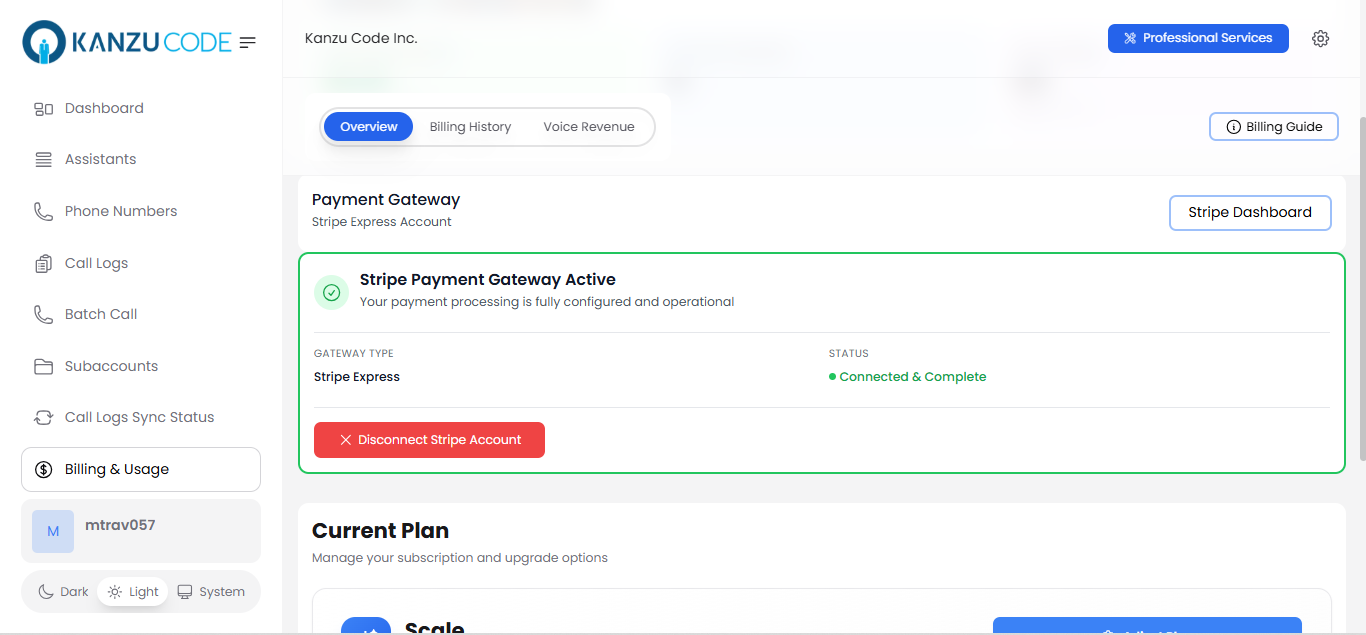
Once connected, confirm you see a **Connected Account ID** and an active status on the Billing & Usage page.
Stripe onboarding typically takes 5-10 minutes. Your clients' payments go directly to your Stripe account. Vapify never touches the funds.
## Tips
* Keep a link to your Stripe Dashboard handy. You'll use it to view payments, payouts, and issue refunds.
## Video Tutorial
## Troubleshooting
* **Onboarding stuck or incomplete**: Return to **Billing & Usage** and click **Get Started** again to resume where Stripe left off.
* **Need to disconnect**: Go to **Agency Settings → Billing**, click **Disconnect Stripe**, and confirm. This stops new client payments and subscriptions immediately.
## Related Articles
* [How Billing Works](/billing/how-billing-works): how provider cost, markup, and Stripe payouts fit together
* [Stripe Integration](/billing/stripe-integration): full reference including refunds and disconnecting
* [Configure Pricing](/getting-started/configure-pricing): set the rates clients are charged