> ## Documentation Index
> Fetch the complete documentation index at: https://docs.vapify.agency/llms.txt
> Use this file to discover all available pages before exploring further.
# Stripe Integration
> Reference for connecting, viewing, and disconnecting your Stripe account.
## Overview
Stripe is how your clients pay you directly. This is the reference for managing that connection after initial setup. For first-time setup, see [Connect Stripe](/getting-started/connect-stripe).
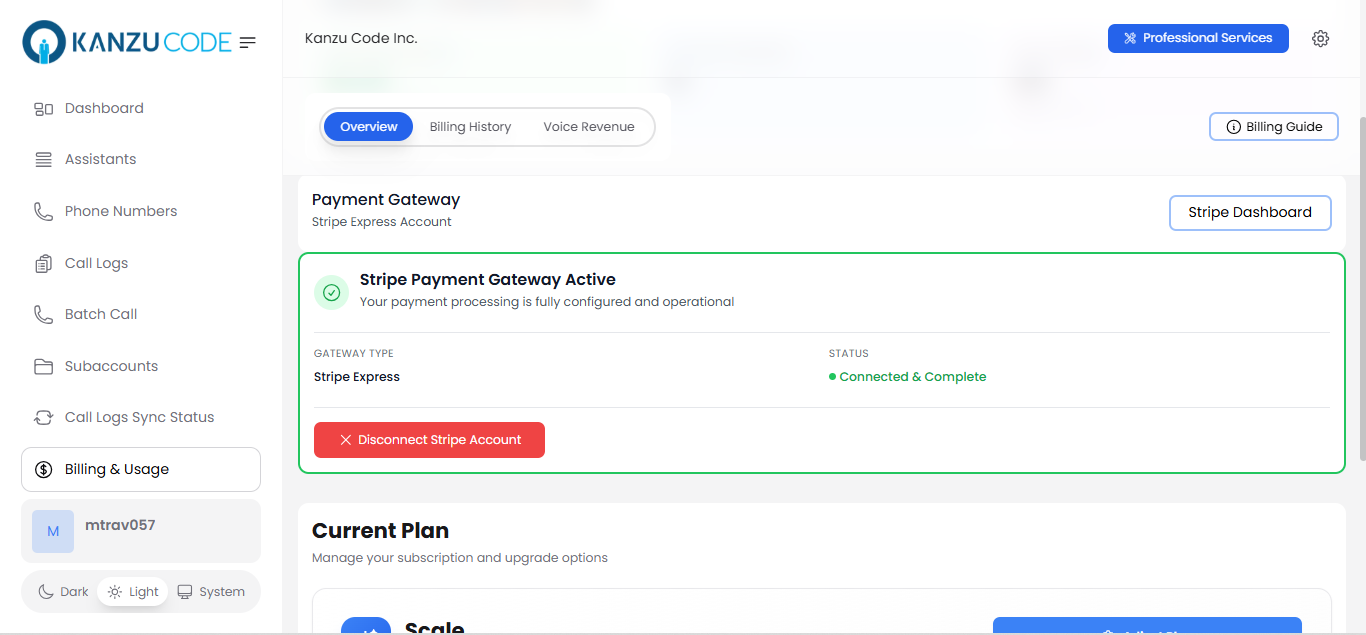 ## Connection details
| Field | Description |
| ------------------------- | ---------------------------------------------------------------------- |
| **Connected Account ID** | Your unique Stripe Connect account identifier, shown once linked |
| **Account status** | Whether your Stripe account is active and able to accept payments |
| **Stripe Dashboard link** | Opens your Stripe account to view payments, payouts, and customer data |
## Viewing your Stripe Dashboard
From **Billing & Usage**, click **Stripe Dashboard** to see payments, payouts, and customer data directly in Stripe.
## Disconnecting Stripe
From **Agency Settings → Billing**, click **Disconnect Stripe** and confirm.
Disconnecting Stripe prevents new client payments and subscriptions immediately. Existing subscriptions may fail to renew until reconnected.
## Fees
Vapify charges no platform fee on payments. You pay Stripe's standard processing fees (for US card payments, approximately 2.9% + \$0.30 per transaction; rates vary by country and payment method — see [Stripe's pricing](https://stripe.com/pricing)) plus your own Vapify subscription. All client payments go directly to your Stripe account.
## Refunds
Issue a refund from the client's sub account (**Clients → \[client] → Billing → Issue Refund**) or directly from your Stripe Dashboard. Choose between a **Stripe Refund** (money returned to the client's payment method, typically 5-10 business days) or an **Account Credit** (stays as Balance in the client's Vapify account, no Stripe transaction).
## Related Articles
* [Connect Stripe](/getting-started/connect-stripe): first-time setup walkthrough
* [How Billing Works](/billing/how-billing-works): the full money flow
* [Wallet & Credits](/billing/wallet-credits): Balance vs. Credits and refund implications
## Connection details
| Field | Description |
| ------------------------- | ---------------------------------------------------------------------- |
| **Connected Account ID** | Your unique Stripe Connect account identifier, shown once linked |
| **Account status** | Whether your Stripe account is active and able to accept payments |
| **Stripe Dashboard link** | Opens your Stripe account to view payments, payouts, and customer data |
## Viewing your Stripe Dashboard
From **Billing & Usage**, click **Stripe Dashboard** to see payments, payouts, and customer data directly in Stripe.
## Disconnecting Stripe
From **Agency Settings → Billing**, click **Disconnect Stripe** and confirm.
Disconnecting Stripe prevents new client payments and subscriptions immediately. Existing subscriptions may fail to renew until reconnected.
## Fees
Vapify charges no platform fee on payments. You pay Stripe's standard processing fees (for US card payments, approximately 2.9% + \$0.30 per transaction; rates vary by country and payment method — see [Stripe's pricing](https://stripe.com/pricing)) plus your own Vapify subscription. All client payments go directly to your Stripe account.
## Refunds
Issue a refund from the client's sub account (**Clients → \[client] → Billing → Issue Refund**) or directly from your Stripe Dashboard. Choose between a **Stripe Refund** (money returned to the client's payment method, typically 5-10 business days) or an **Account Credit** (stays as Balance in the client's Vapify account, no Stripe transaction).
## Related Articles
* [Connect Stripe](/getting-started/connect-stripe): first-time setup walkthrough
* [How Billing Works](/billing/how-billing-works): the full money flow
* [Wallet & Credits](/billing/wallet-credits): Balance vs. Credits and refund implications